User Management
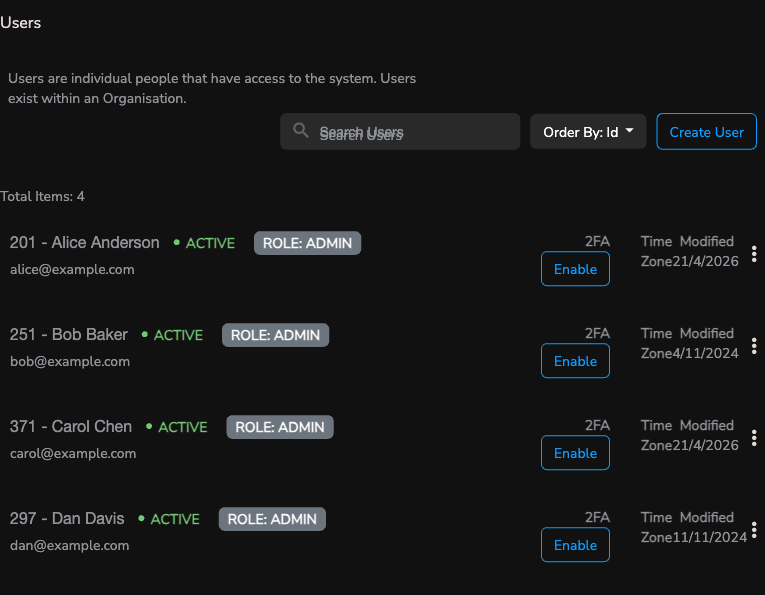
The Users tab under Organisation Settings is where you add and maintain the people who can sign in to Secure60 for your organisation. A User record holds the sign-in identity (email), personal details (name, mobile), role, status, 2FA state, and their Time Zone — which the platform uses to render times in the Portal and to schedule notification emails.
Users can be managed by anyone with the Admin role (see RBAC). Operator Managers can manage some user details but not role assignment.
Creating and Editing a User
From Organisation Settings → Users, click Create User to add a new person, or the ⋮ menu on any row and pick Edit to open the edit panel.
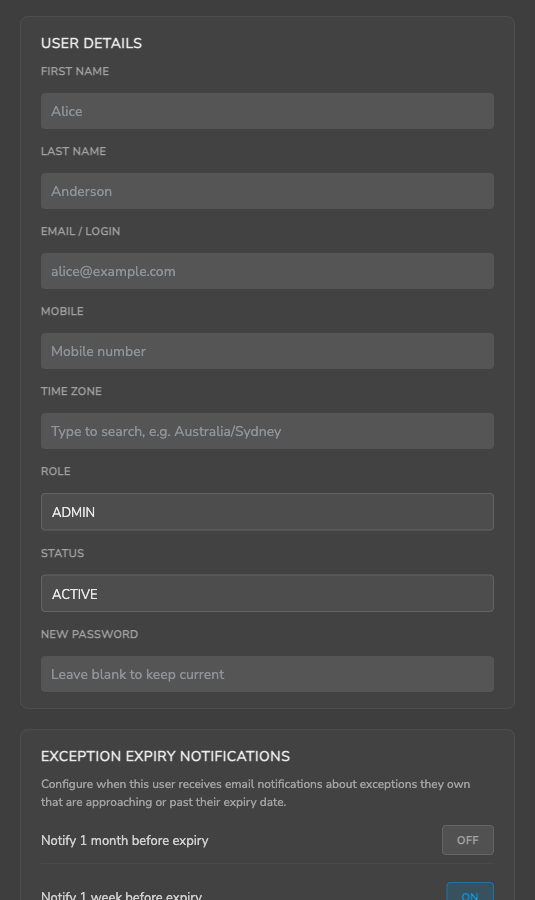
The edit panel is organised into sections:
- User Details — name, email/login, mobile, role, status, time zone, password reset.
- Exception Expiry Notifications — per-user preferences for email notifications about exceptions the user owns (see below).
- Governance Review Notifications — per-user preferences for control review reminders and register attestation reminders.
- Threat Group Notifications — per-user subscriptions to individual threat groups (notify on assignment or change).
Time Zone
Every User record has a Time Zone field holding an IANA timezone identifier (for example Australia/Sydney, Europe/London, America/Los_Angeles). Secure60 uses this to:
- Render timestamps throughout the Portal in the user’s local time.
- Decide when to send their daily/weekly digest emails — exception expiry, governance review, and response digests all fire at ~08:00 in the user’s local time so they arrive first thing rather than in the middle of the night (see Digest Emails and Timezones below).
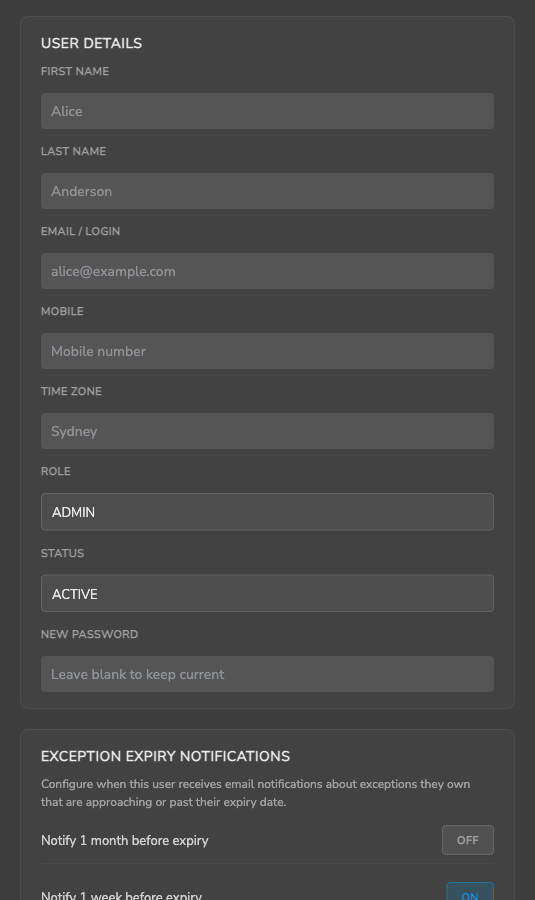
The Time Zone field on the edit panel is a searchable dropdown backed by the full IANA timezone list (almost 600 zones). Type to filter — for example, “Sydney” quickly narrows to Australia/Sydney.
How the Time Zone is populated
- When a user signs in to the Portal, if their User record has no Time Zone set, the Portal reads the browser’s detected zone and writes it back to the User record silently — so most active users get a sensible default within a session or two without any admin effort.
- Users can change their Time Zone at any time using the Time Zone selector in the top-right of the Portal. The selector writes back to the User record.
- Admins can set or override a user’s Time Zone directly from the Edit User panel.
If the Time Zone is blank (the user has never signed in and never been edited), Secure60 falls back to UTC for that user’s digest scheduling.
Roles and Status
See RBAC for the list of available roles and what each can do. Status values:
- ACTIVE — the user can sign in and take actions according to their role.
- INACTIVE — the user cannot sign in. Their record is retained for audit.
Notification Preferences
Each section in the edit panel controls a category of automated emails that can be sent to this user. Toggles are Yes/No; frequency dropdowns offer DAILY / WEEKLY / NONE.
Exception Expiry Notifications
Controls how the user is reminded about exceptions they own as they approach or pass expiry.
| Preference | Purpose |
|---|---|
| Notify 1 month before expiry | Email when an owned exception is ~30 days from expiry. Default OFF. |
| Notify 1 week before expiry | Email when an owned exception is ~7 days from expiry. Default ON. |
| Notify on the day of expiry | Email on the local calendar day the exception expires. Default ON. |
| Reminders for expired exceptions | How often to re-email after expiry: DAILY / WEEKLY / NONE. Default WEEKLY. |
Emails are delivered as a single daily digest — even if multiple exceptions hit multiple windows on the same day, the user gets one email.
Governance Review Notifications
Controls how the user is reminded about controls and registers they own. Two sub-groups:
- Controls (per-control review dates): 1-month before, 1-week before, on-due-day toggles, plus a DAILY/WEEKLY/NONE frequency for overdue reminders.
- Registers (register-level attestation signoff): same shape.
See Governance & Compliance for how review cadences are configured on controls and registers.
Threat Group Notifications
For each threat group (tag) the user is interested in, the user can subscribe to:
- Notify on assignment — email when a threat is assigned to this group.
- Notify on change — email when a threat already in this group changes state or is updated.
Add groups via the + Add group control in the edit panel; remove by clearing both toggles.
Threat groups are queues for triaging threats. See Threat Management for how groups, states, and outcomes drive the threat workflow.
Digest Emails and Timezones
Secure60 sends several kinds of digest emails — all of them follow the same timezone-aware scheduling rules so users in different regions all get emails at a sensible local hour.
| Source | |
|---|---|
| Exception expiry digest | admin_check_expiring_exceptions.php (hourly cron) |
| Governance review digest | admin_check_governance_reviews.php (hourly cron) |
| Response email digest | admin_check_response_digests.php (hourly cron) |
Scheduling semantics
- Each cron runs every hour on the hour (UTC).
- For each recipient, the cron computes “is it due to fire yet?” using the recipient’s
UserTimeZone. - DAILY digests fire at the first hourly tick where the recipient’s local hour is 08:00 or later, once per recipient-local day.
- WEEKLY digests fire on the recipient’s local Monday at 08:00.
- HOURLY (response digests only) fires every hour on the hour, independent of the recipient’s timezone.
- If a user has no Time Zone set, the fallback is UTC, so the digest fires at 08:00 UTC (same as before this feature shipped).
The practical outcome: a user in Sydney receives their daily digests at 08:00 Sydney time; a user in London at 08:00 London time; a user in Los Angeles at 08:00 PT. Nobody is emailed in the middle of their night.
API
User records are managed via the /admin/1.0/user endpoint. See the API reference for parameters. Notification preferences are returned alongside the user object under:
exception_notification_prefsgovernance_review_notification_prefsregister_review_notification_prefsthreat_group_notification_prefs
The time_zone field accepts any IANA zone identifier (Australia/Sydney, Europe/London, etc.). Invalid values are rejected at the API boundary.
See Also
- RBAC — role definitions.
- Governance & Compliance — where review notifications come from.
- Responses — per-response email digests (a different kind of digest).
 Back to top