Governance & Compliance Management Guide
This guide covers how to set up and manage compliance frameworks in Secure60, from deploying your first framework template through to ongoing control assessments, evidence management, and review workflows. For a narrative walkthrough of the end-to-end governance journey, see the Governance Lifecycle Workflow guide. For an overview of governance capabilities, see the Governance, Risk & Compliance Solution page.
Prerequisites
- A Secure60 account with Admin or Operator Manager role
- At least one active Secure60 project / organisation
- Identified compliance frameworks your organisation needs to manage (e.g. ISO 27001, SOC 2, PCI DSS, NIST CSF, Essential 8)
- Contact support@secure60.io for account setup assistance
Initial Setup Workflow
Step 1 — Request & Deploy a Framework Template
The fastest way to get started is to deploy a pre-built compliance framework template. The Secure60 team maintains templates for common frameworks — contact support@secure60.io to request the template you need (e.g. ISO 27001:2022, SOC 2, PCI DSS). Additional templates can be made available on request.
Once a template has been made available to your organisation:
- Navigate to Governance in the left-hand menu
- Click the Templates tab
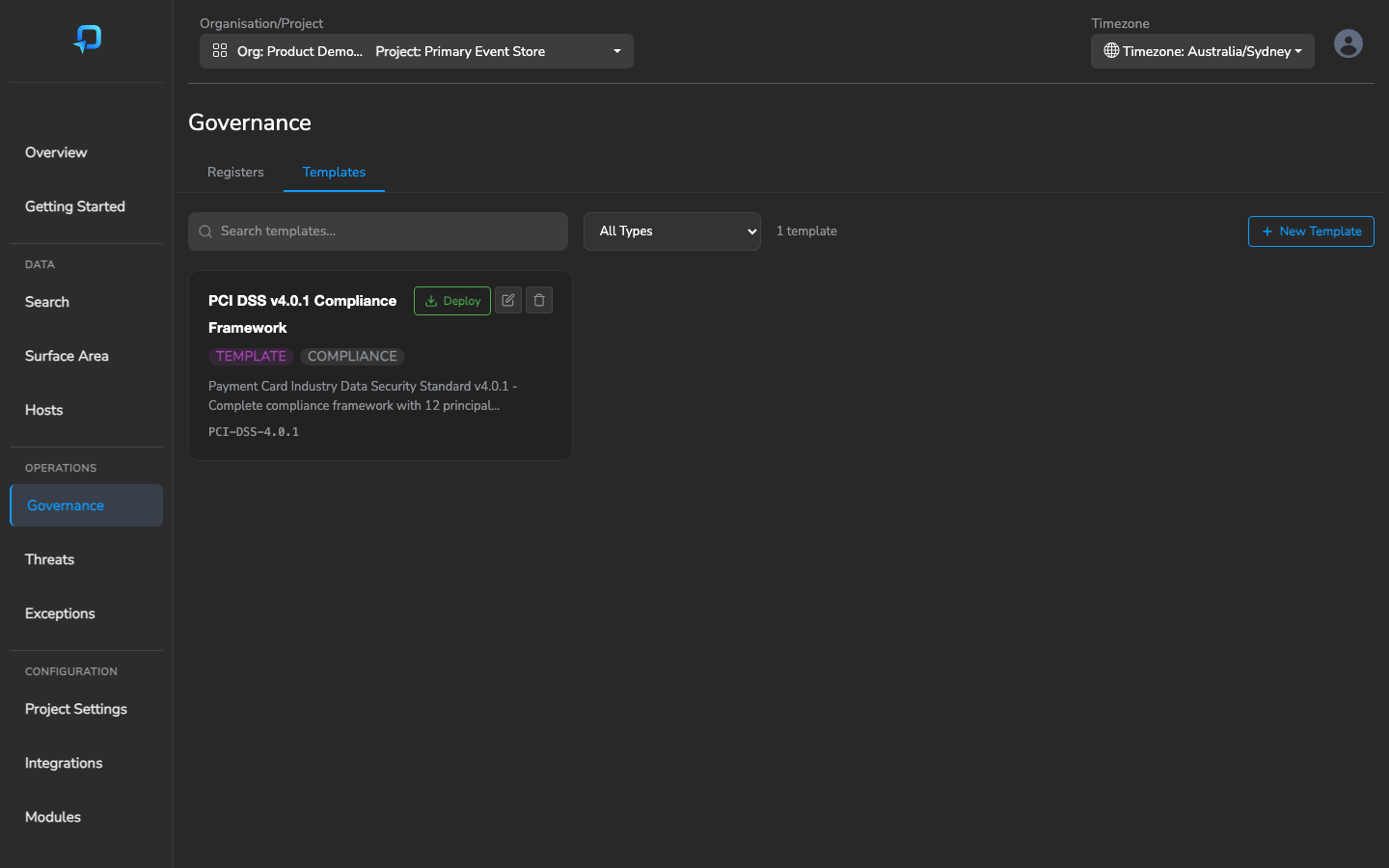
- Find your template and click Deploy to create a new register
- Give the register a name (e.g. “ISO 27001:2022 — 2026 Assessment”)
- The template deploys a complete register with all control groups and individual controls pre-populated, ready for assessment
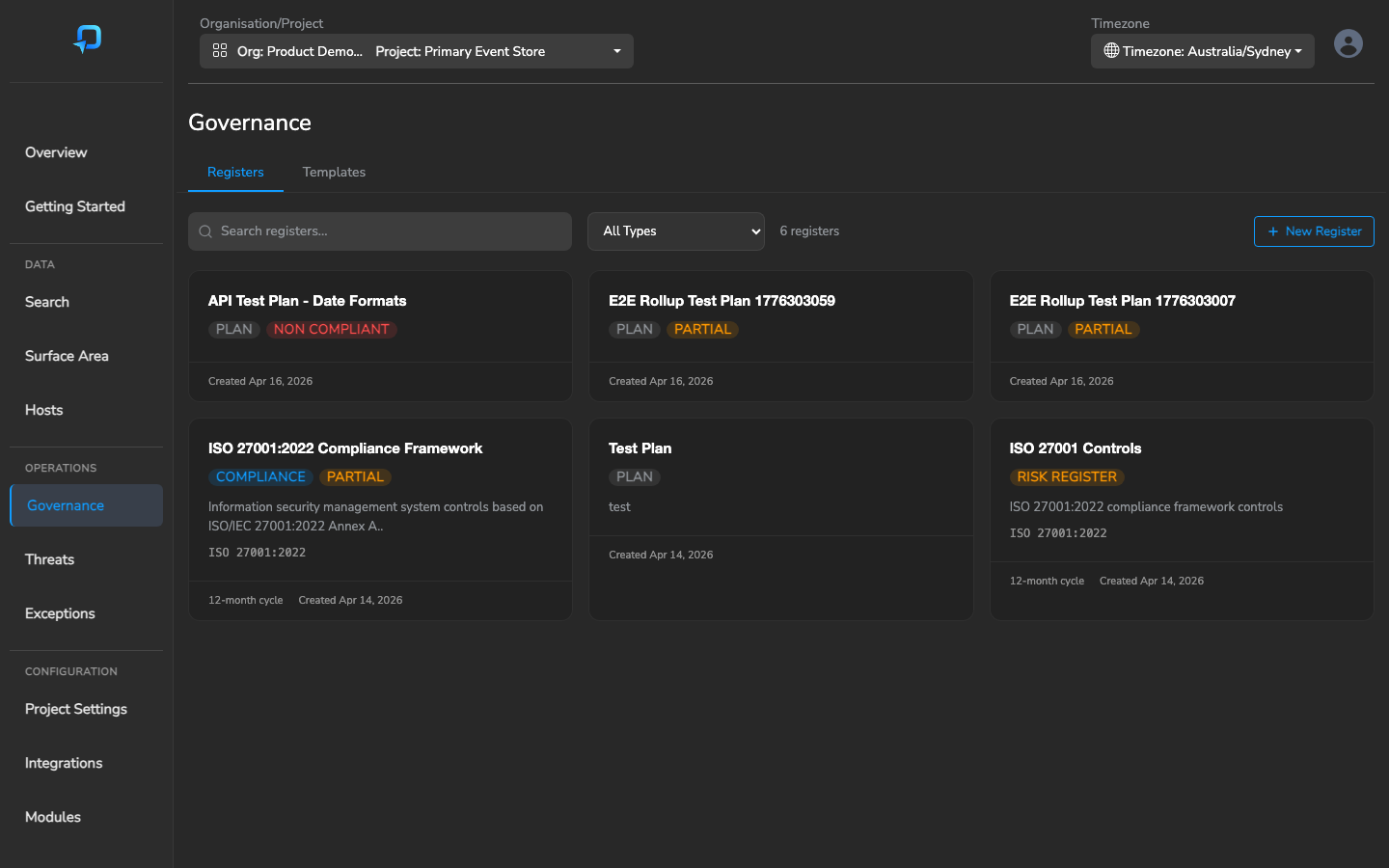
Step 2 — Assign Control Owners
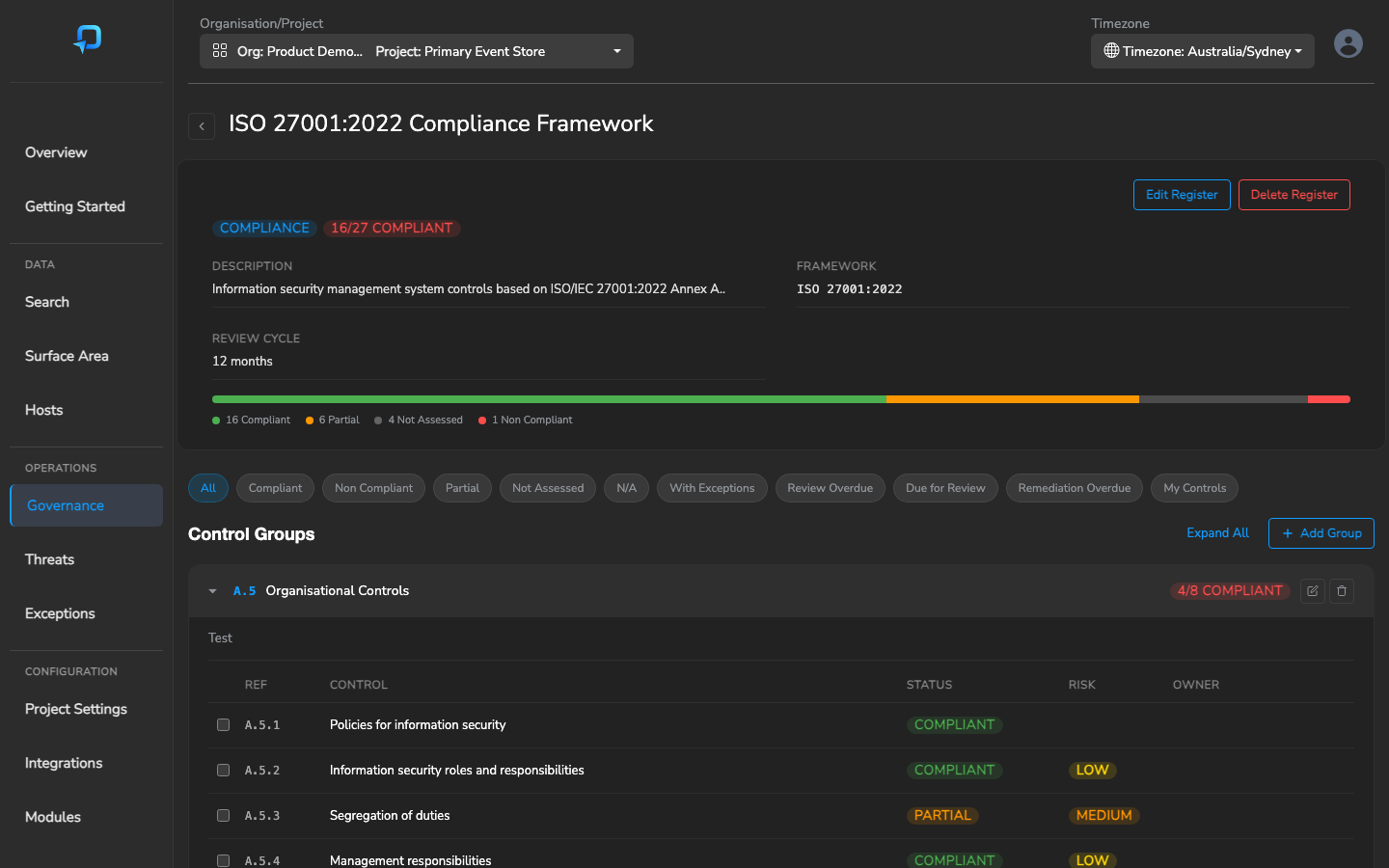
Each control can be assigned to a responsible owner within your organisation. This determines who receives review notifications and enables the My Controls filter for quick access.
- Open a register and expand a control group
- Click a control to open the Assessment Drawer
- Use the Owner dropdown to assign the responsible person
- For efficiency, use bulk owner assignment: select multiple controls using the checkboxes, then assign an owner to all selected controls at once
Step 3 — Configure Review Periods
Review periods determine how often each control should be reassessed. You can set this at two levels:
- Register level — Set a default review cycle (in months) that applies to all controls in the register. This is configured when creating or editing the register
- Per-control override — Override the register default for individual controls that need more frequent review. Set the Review Period (Days) field in the assessment drawer. Common options: daily (1), weekly (7), monthly (30), quarterly (90), semi-annual (180), annual (365)
Step 4 — Assign a Register Owner
In addition to per-control owners, each register has a single Register Owner — typically a compliance lead, CISO, or ISO — who is accountable for the overall state of the register. The register owner is a separate role from the individual control owners: they don’t have to assess each control themselves, they attest that the register as a whole is in acceptable shape.
- Open the register and click Edit
- Set the Register Owner field to the responsible person
- Save
Register owners receive their own dedicated reminder emails when the register is approaching its review date or is overdue. These reminders are independent from the control-level reminders the individual control owners receive.
Step 5 — Set Up Notifications
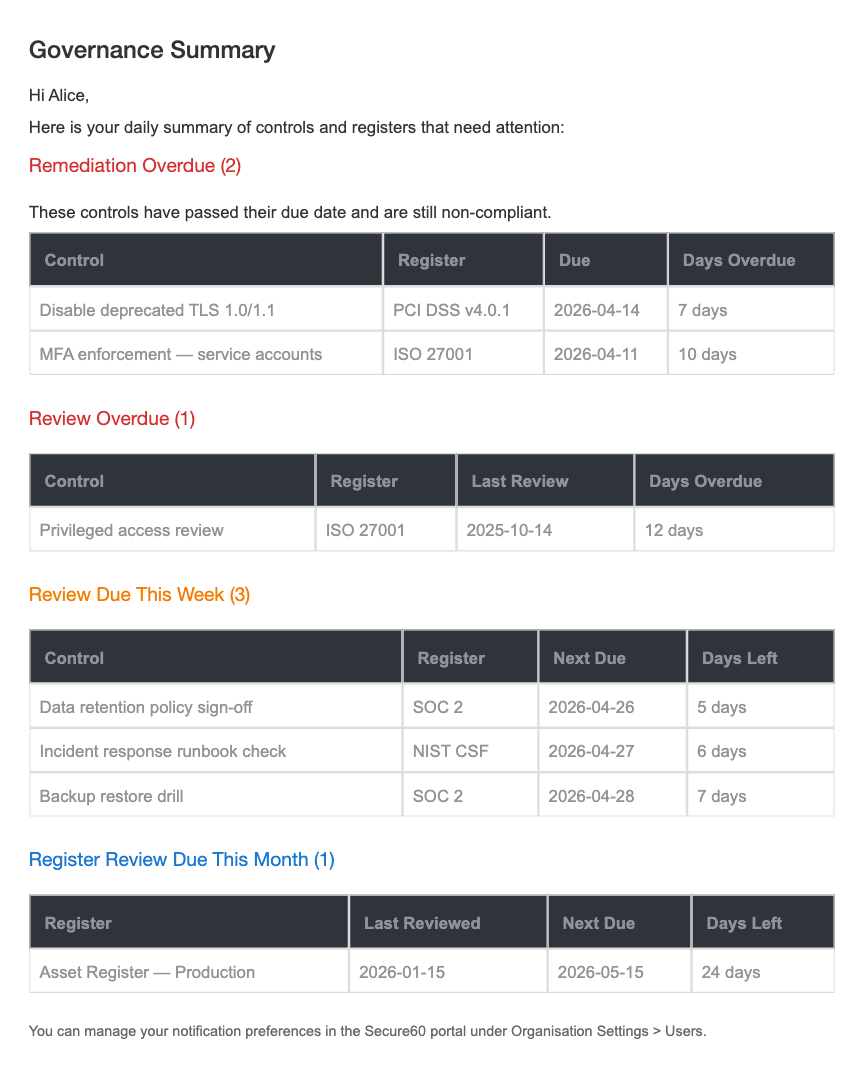
Secure60 sends email digest notifications when reviews are upcoming or overdue. Each user gets one digest email per day covering everything they’re accountable for — control reviews, remediation overdue, and register-level attestation reviews — combined in a single readable summary.
Each user can configure their notification preferences independently for control-level and register-level reviews:
Control-level reminders (for control owners):
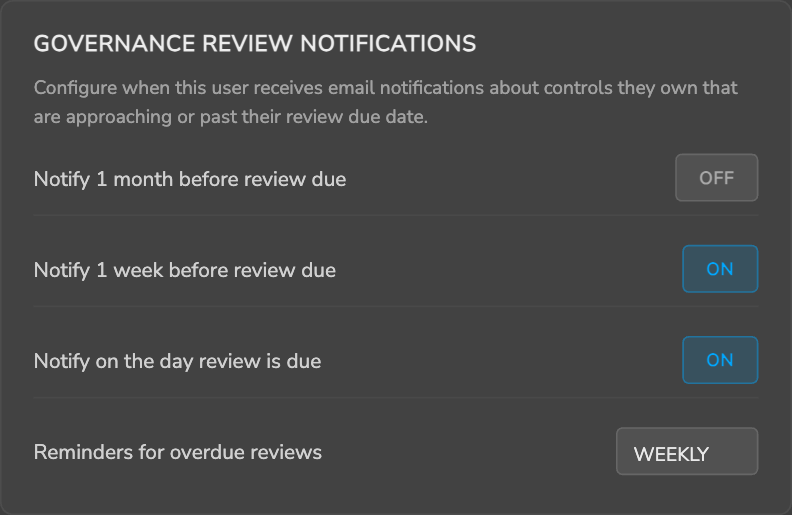
- 1-month ahead — Reviews due in approximately one month
- 1-week ahead — Reviews due in approximately one week (enabled by default)
- Due today — On the day a review is due (enabled by default)
- Overdue frequency — How often to receive overdue reminders: Daily, Weekly (default), or None
Register-level reminders (for register owners):
- 1-month ahead — Register attestation due in approximately one month
- 1-week ahead — Register attestation due in approximately one week (enabled by default)
- Due today — On the day a register review is due (enabled by default)
- Overdue frequency — Daily, Weekly (default), or None
Notification preferences can be updated in user account settings. Users who own both controls and registers receive one combined email covering both — not multiple emails.
Ongoing Maintenance Workflow
Performing Control Assessments
The Assessment Drawer is the primary workspace for evaluating controls. Click any control row to open it.
The drawer displays the control details, description/requirement, and all assessment fields:
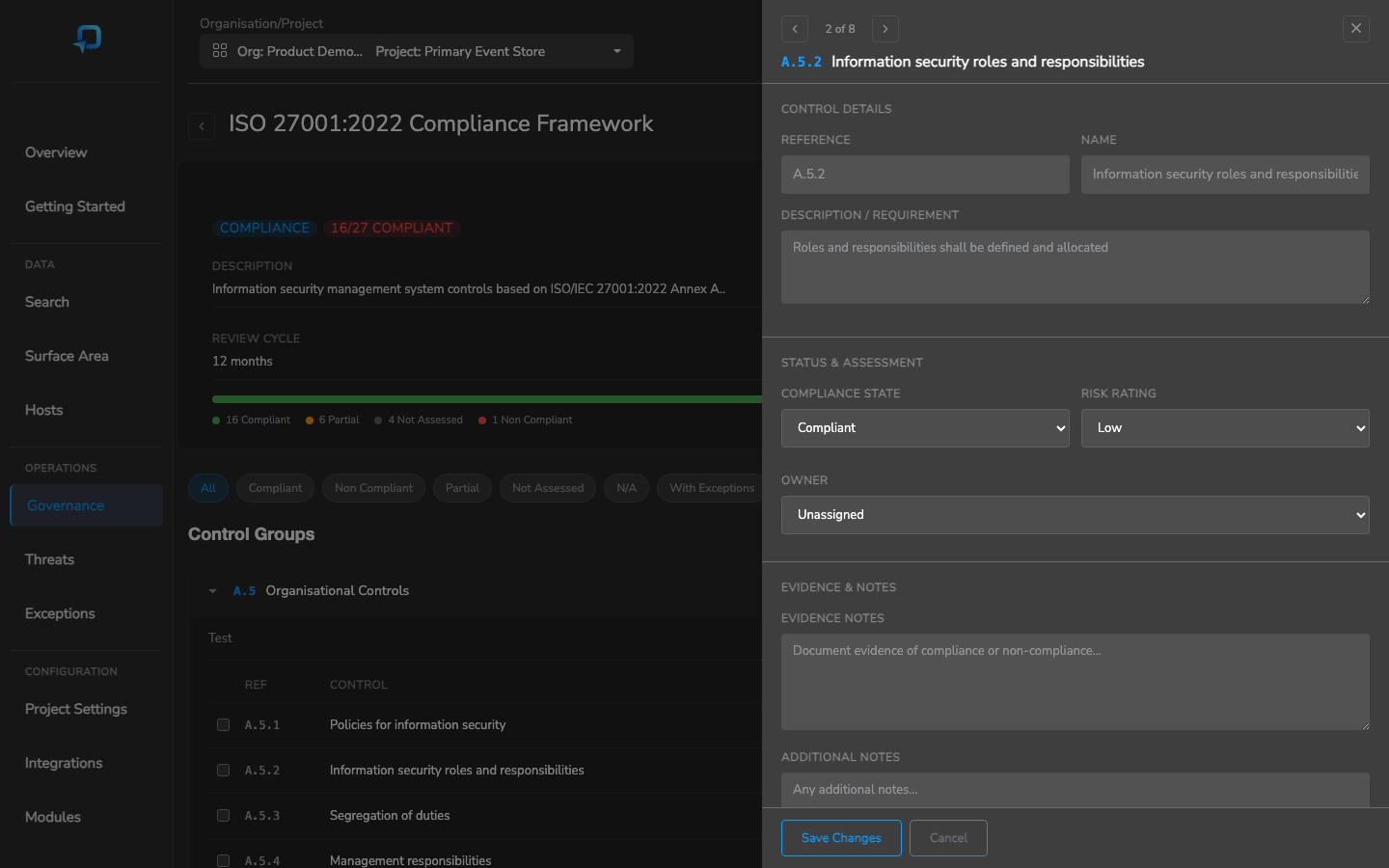
- Set Compliance State — Choose from Compliant, Non-Compliant, Partial, Not Assessed, or Not Applicable
- Set Risk Rating — Classify the risk level: Critical, High, Medium, Low, or Info
- Assign Owner — Select the person responsible for this control
- Write Evidence Notes — Document how your organisation meets (or doesn’t meet) the control requirement
- Set Remediation Due Date — If Non-Compliant or Partial, set a target date for remediation
- Click Save Changes to update the control
Use the Prev/Next arrows at the top of the drawer to move sequentially through controls without closing the drawer. When filters are active, prev/next respects the filtered set — making it easy to work through all controls of a specific status.
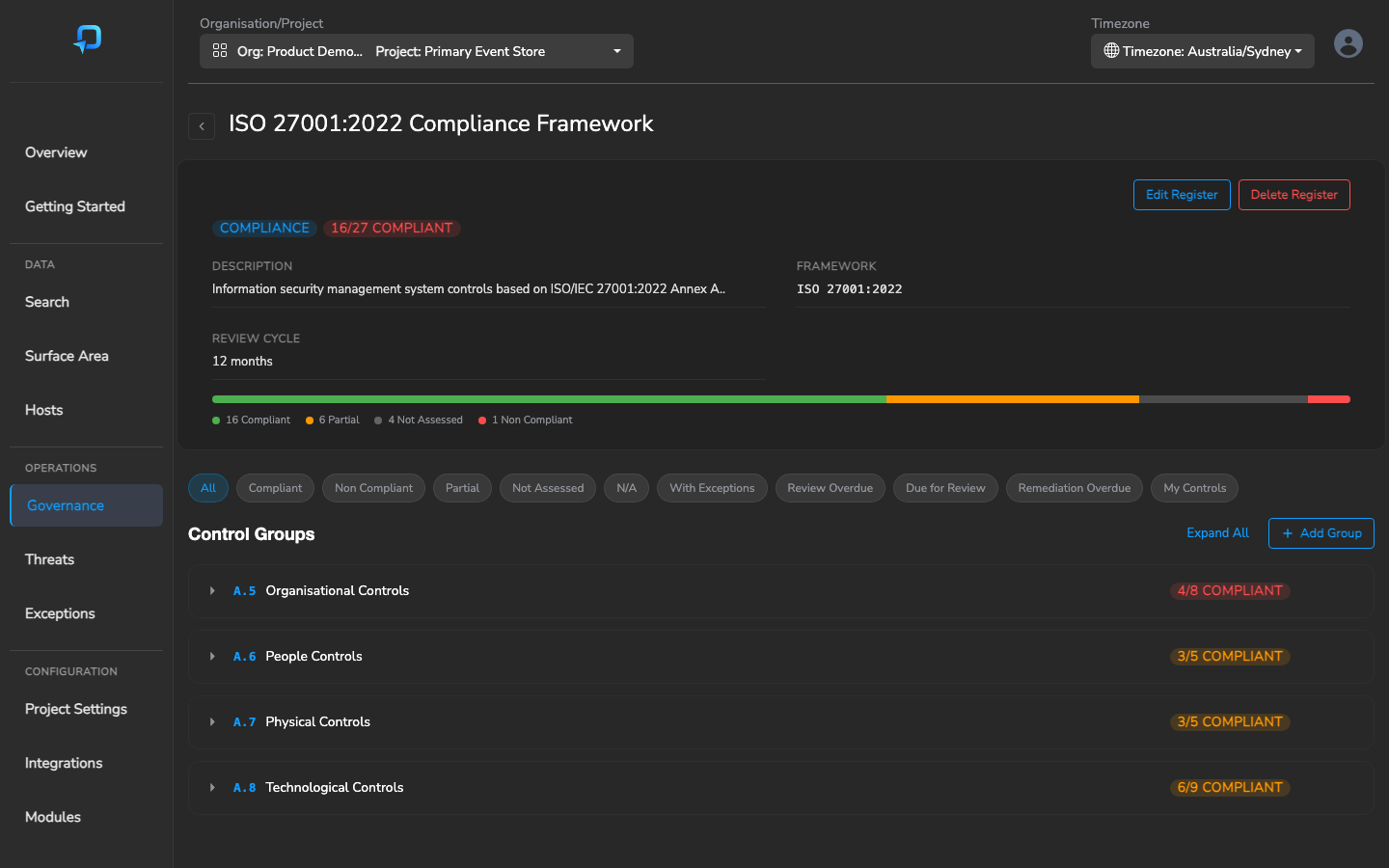
After each save, the compliance rollup automatically recalculates at the control group and register level.
Attaching Evidence
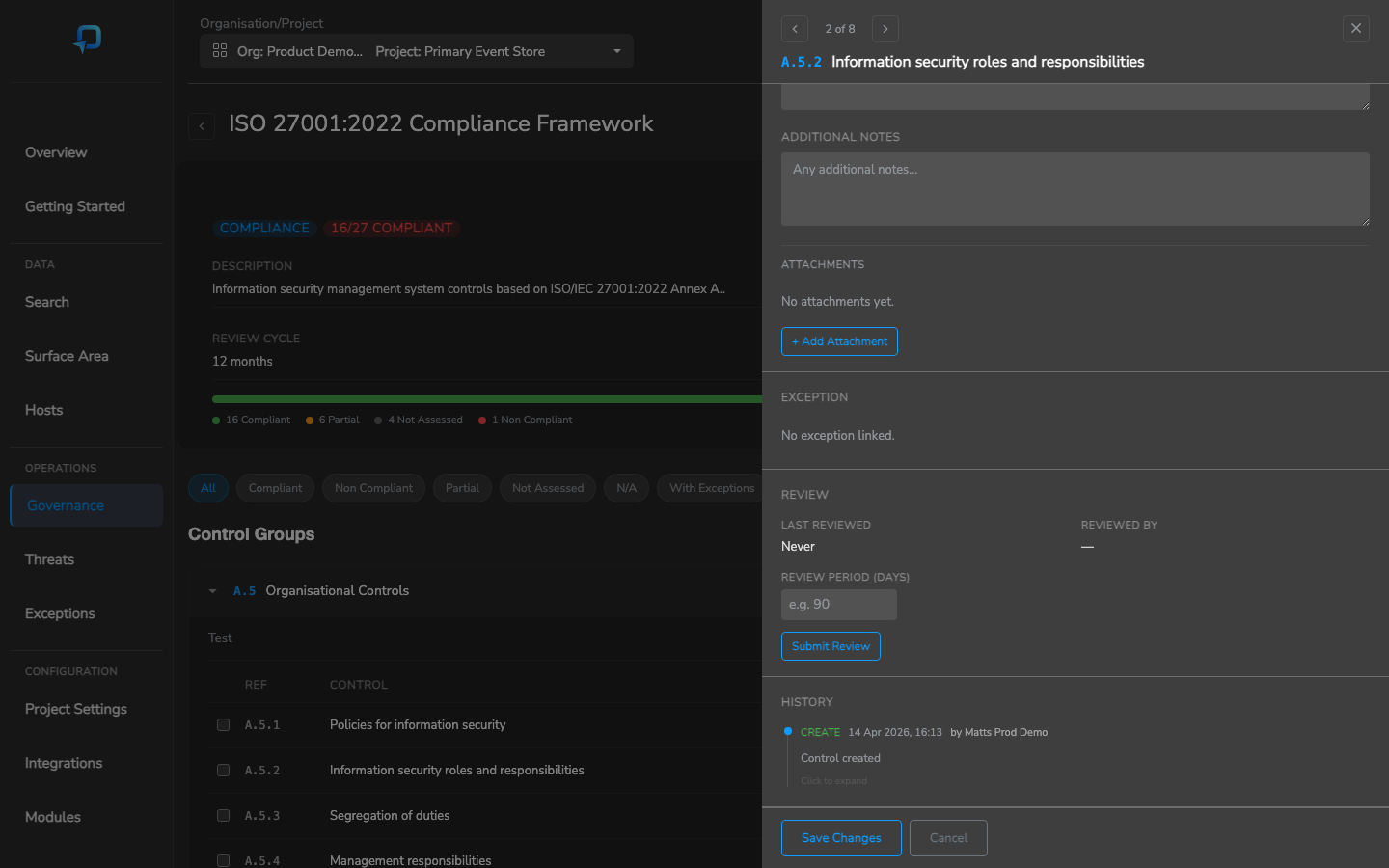
Evidence can be attached to any control to document compliance. Five evidence types are supported:
- Note — Free-text notes documenting how the control is met
- URL — Links to external documentation, policies, or procedures
- File — Upload documents directly (PDF, DOCX, XLSX, CSV, TXT, PNG, JPG, GIF — up to 10MB)
- Portal Page — Link to pages within the Secure60 portal (Hosts, Threats, Surface Area, Search, Exceptions, Governance, Analytics) to connect compliance controls to live monitoring data
- Report Link — Reference specific Analytics & Reporting reports as evidence
To add evidence, open the assessment drawer and click + Add Attachment in the Attachments section.
Managing Exceptions
When a control cannot be directly met, you can raise an exception with a compensating control:
- Open the control in the assessment drawer
- In the Exception section, click Raise Exception
- Fill in the required fields:
- Reason — Why the control cannot be directly met (required)
- Compensating Control — What alternative measures are in place
- Risk Acceptance — Formal risk acceptance statement
- Expiry Date — Choose from 6 months, 12 months, 2 years, custom date, or never
- Save the exception
When an exception is raised, the control is automatically set to Compliant with a star indicator, distinguishing it from directly compliant controls. Excepted controls count as compliant in the rollup calculation.
You can extend, view details, or remove exceptions directly from the assessment drawer.
Submitting Reviews
Regular reviews ensure compliance evidence remains current. When a review is due:
- Open the control in the assessment drawer
- Verify that the evidence and compliance status are still accurate
- In the Review section, click Submit Review
- Select the review outcome:
- Confirmed — Control compliance is verified and current
- Issue Found — A problem was identified that needs attention
- Needs Action — Follow-up action is required
- Add review notes documenting your findings
The system automatically records the review date and reviewer, calculates the next review due date, and adds the review to the control’s timeline history.
Register-Level Review Signoff
Alongside per-control reviews, Secure60 supports register-level attestation reviews — a separate, lighter-weight review performed by the register owner to formally confirm they are satisfied with the overall state of the register as a whole. This is an explicit audit-trail artefact rather than a deep re-assessment.
Who does this? The register owner — typically a compliance lead, CISO, or ISO. This is a deliberately separate role from the individual control owners who assess the specific controls inside the register.
What does it do?
- Records a timestamped attestation entry with reviewer, outcome, and narrative notes
- Updates the register’s “Last Reviewed” date and “Reviewed By” fields
- Does not change any individual controls — attestations do not cascade, do not reset control review cadences, and do not modify control status. The register owner is confirming the register is in acceptable shape overall, not re-reviewing every control inside it.
- Adds the entry to the register’s review timeline for the audit trail
How to submit a register review:
- Open the register
- In the Register Review section, click Submit Register Review
- Select the outcome (Confirmed, Issue Found, Needs Action)
- Add narrative notes documenting what you reviewed and confirmed
- Save
The register’s next-review-due date is then recalculated from the attestation date plus the register’s configured review period. Register owners receive reminder emails as the next attestation approaches (see Notifications below).
Why this exists. Compliance frameworks typically require an auditable record that a responsible individual has periodically reviewed the state of each register. Having a dedicated register-level review separate from control-level reviews:
- Keeps accountability explicit — the register owner signs off on the whole, not just individual controls
- Allows review at a cadence appropriate for the register (e.g. annual attestation of a register even when individual controls are reviewed monthly)
- Preserves a clean audit timeline of register-level attestations separate from the per-control review history
- Avoids forcing the register owner to re-confirm every individual control when the objective is an overall state review
Using Filters & Bulk Actions
The filter bar above the control groups provides quick access to specific subsets of controls:
| Filter | Shows |
|---|---|
| All | All controls in the register |
| Compliant | Controls with Compliant status |
| Non Compliant | Controls with Non-Compliant status |
| Partial | Controls with Partial status |
| Not Assessed | Controls not yet assessed |
| N/A | Controls marked Not Applicable |
| With Exceptions | Controls that have an active exception |
| Review Overdue | Controls where the review due date has passed |
| Due for Review | Controls with upcoming reviews |
| Remediation Overdue | Non-compliant controls past their remediation due date |
| My Controls | Controls assigned to you |
Bulk actions are available when you select multiple controls using the checkboxes:
- Bulk Status Update — Set the compliance status for all selected controls at once
- Bulk Owner Assignment — Assign an owner to all selected controls
- Bulk Review Submission — Submit reviews for all selected controls
Use Expand All / Collapse All to quickly show or hide all control groups.
Features by Persona
Compliance Manager / GRC Lead
- Set up and manage compliance frameworks and registers
- Monitor overall compliance posture via the rollup dashboard and visual status bar
- Configure review cadence and notification settings for the team
- Request and deploy framework templates
- Use bulk actions for efficient management across large frameworks
- Act as Register Owner — sign off on the overall state of each register they’re accountable for, recording formal attestations against a timestamped audit trail
Control Owner
- Assess assigned controls via the assessment drawer
- Attach evidence — notes, files, URLs, and portal page links
- Submit periodic reviews when notified
- Use the My Controls filter to quickly find assigned work
- Respond to email notification digests for upcoming and overdue reviews
Risk Manager
- Review and manage exceptions and compensating controls
- Monitor risk ratings across all controls
- Track remediation progress using the Remediation Overdue filter
- Review risk acceptance statements and manage exception expiry dates
Auditor (Read Only)
- View compliance status and rollup posture across all registers
- Review evidence attached to individual controls
- Access the complete audit trail with FROM/TO change diffs
- Review exception history and compensating control documentation
IT / Security Team
- Link technical evidence from monitoring portal pages to compliance controls
- Use Portal Page and Report Link evidence types to connect controls to live data
- Support control owners with technical evidence gathering and documentation
Role-Based Access Reference
| Role | Create / Delete | Update | Read |
|---|---|---|---|
| Admin | Yes | Yes | Yes |
| Operator Manager | Yes | Yes | Yes |
| Operator | No | Yes | Yes |
| Read Only | No | No | Yes |
Review Notifications
Control and register owners receive email reminders as their review and remediation dates approach or pass. Reminders are delivered as one daily digest email per user — no matter how many controls they own or how many windows those controls hit on a given day, the user gets a single consolidated email.
What triggers a reminder
For controls (per-control review date):
| Window | Default | User preference |
|---|---|---|
| Review due in ~1 month | OFF | GOV_REVIEW_NOTIFY_1MONTH |
| Review due in ~1 week | ON | GOV_REVIEW_NOTIFY_1WEEK |
| Review due today | ON | GOV_REVIEW_NOTIFY_DUE |
| Review overdue (any length) | WEEKLY | GOV_REVIEW_NOTIFY_OVERDUE_FREQ (DAILY / WEEKLY / NONE) |
| Remediation overdue | Same as review-overdue frequency | GOV_REVIEW_NOTIFY_OVERDUE_FREQ |
For registers (register-level attestation signoff):
| Window | Default | User preference |
|---|---|---|
| Register review due in ~1 month | OFF | GOV_REGISTER_REVIEW_NOTIFY_1MONTH |
| Register review due in ~1 week | ON | GOV_REGISTER_REVIEW_NOTIFY_1WEEK |
| Register review due today | ON | GOV_REGISTER_REVIEW_NOTIFY_DUE |
| Register review overdue | WEEKLY | GOV_REGISTER_REVIEW_NOTIFY_OVERDUE_FREQ |
Control owners and register owners manage their own preferences from the Edit User panel in Organisation Settings → Users (see User Management).
When reminders are sent
- The review-digest cron runs every hour on the hour (UTC).
- For each user with matching reviews, the cron checks the user’s Time Zone (set on their User record) and only sends if it’s at least 08:00 in their local time and a digest hasn’t already been sent on that recipient-local day.
- WEEKLY frequency fires on the user’s local Monday at 08:00.
- Users with no Time Zone configured fall back to UTC scheduling.
This means a control owner based in Sydney will receive their review digest at 08:00 Sydney time; an owner in London at 08:00 London time; etc. See User Management → Digest Emails and Timezones for the full scheduling model.
Unsubscribing or reducing noise
Users who don’t want any review emails can:
- Toggle the three per-window toggles to OFF and set the overdue frequency to NONE.
- Or remove themselves as the owner of the controls/registers.
There is no org-wide on/off switch by design — notifications are a per-user preference so that reducing noise for one recipient does not affect others.
Need Help?
For questions about governance and compliance management, contact support@secure60.io.
For an overview of capabilities, see the Governance, Risk & Compliance Solution page. For reporting and data export, see the Reporting & Export section.
 Back to top