Secure60 Collector
Overview
The Secure60 Collector ingests data from your log sources and transforms it into the Secure60 Common Information Model (CIM), then sends it to your Secure60 Project.
Key Features
- HTTP/S and Syslog endpoints for ingestion
- HTTP polling for data extraction from third-party systems
- 40+ custom integration options (Kafka, AWS S3, Redis, Splunk HEC, Fluent, etc.)
- Automatic field normalisation
- Scalable to hundreds of thousands of events per second
- Flexible deployment (Docker, cloud-hosted, or bare metal)
- Data masking and privacy controls
- Portal-based configuration management
How configuration works
You deploy a collector once with a small environment file that says which collector group it belongs to. Everything after that — which parsers run, and what they do — is managed in the portal and pulled by the collector on a loop. A parser change is live inside a minute, with no redeploy and no restart.
Three things make up that configuration:
| What it does | |
|---|---|
| Log Parsers | Match a log type and pull structured fields out of it — usernames, IP addresses, outcomes — into CIM field names. |
| Enrichment Parsers | Look up an event field in a table maintained in the portal and add columns from the matching row — context, ownership, or the project an event belongs to. |
| Parser Templates | Proven parsers you can deploy into an organisation in one click, without writing any parser code. |
| Log Patterns | Automatic detection of the log shapes arriving in your project, so you can see what you have before you parse it. |
If you are starting out, begin with Parser Templates — it is the fastest way to get structured fields out of a common log source.
Collector configuration can also be managed entirely through an environment file, without the portal. That approach is documented under Manual Configuration and is mainly of interest for older deployments and for the few settings that are still read at start-up.
Creating Collector Groups
Collector Groups allow you to organize and manage multiple collectors together. This is the starting point for portal-based configuration.
Step 1: Navigate to Collectors
- Log in to your Secure60 Portal
- Navigate to Integrations → Secure60 Collector → Collectors
Step 2: Create a New Collector Group
- Click the “New Collector Group” button
- Enter a descriptive name for your collector group (e.g., “Production Web Servers”, “Network Devices”, “Application Logs”)
- The system will generate a unique identifier for this group
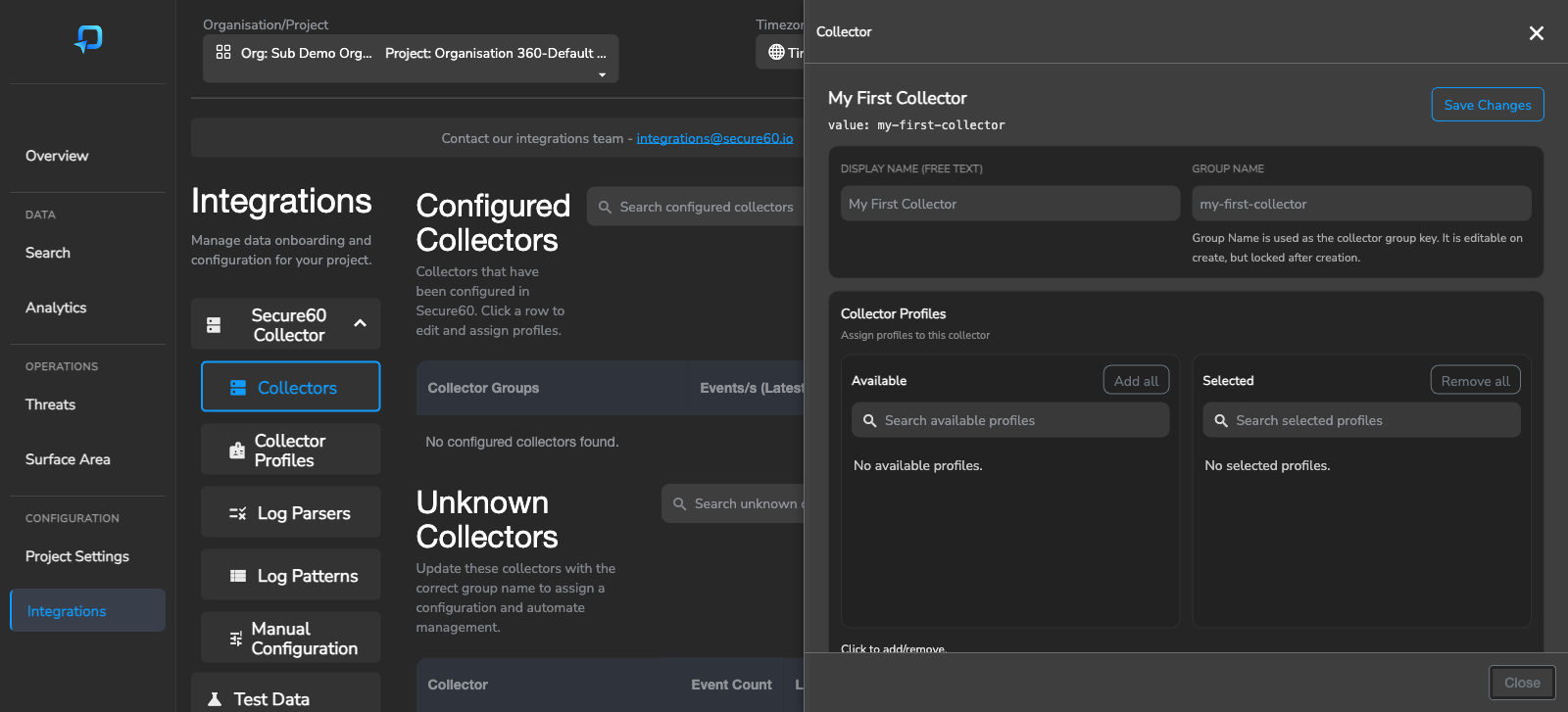
The Group Name is the key collectors report under. It can be edited while you are creating the group, but is locked once saved.
Step 3: Generate Configuration File
Once you’ve created a collector group, you can generate a .env file that contains all the necessary configuration:
- Select your collector group from the list
- Click to view the group details
- Generate or download the
.envfile
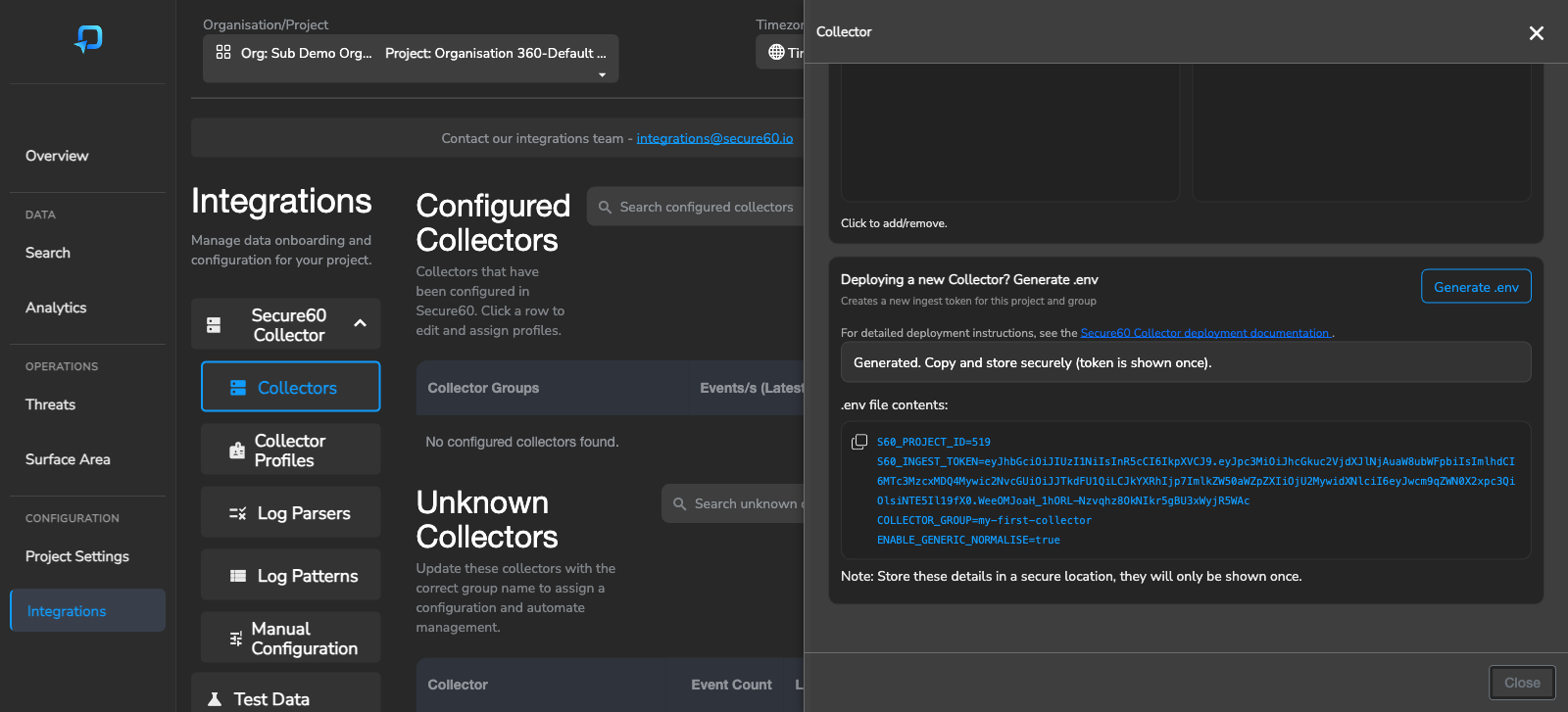
The generated file is deliberately small — it identifies the collector and nothing more:
S60_PROJECT_ID=<your project id>
S60_INGEST_TOKEN=<generated token>
COLLECTOR_GROUP=<your group name>
ENABLE_GENERIC_NORMALISE=true
ENTITY_TRACKING_HOSTNAME=true
ENTITY_TRACKING_USERNAME=true
ENTITY_TRACKING_SRCIP=true
ENTITY_TRACKING_APPNAME=true
COLLECTOR_GROUP is the important line: it is what the collector uses to ask the portal which configuration belongs to it. Profiles and parsers are not written into this file — they arrive over the sync described below, which is why a parser change never requires a redeploy.
Step 4: Deploy the Collector
Use the generated .env file to deploy your Secure60 Collector:
docker run -i --name s60-collector \
  -p 80:80 -p 443:443 -p 514:514/udp -p 6514:6514 -p 5044:5044 \
  --rm -d --env-file .env secure60/s60-collector:stable
Or using Docker Compose:
services:
  s60-collector:
    image: "secure60/s60-collector:stable"
    container_name: "s60-collector"
    ports:
      - "443:443"
      - "80:80"
      - "514:514/udp"
      - "6514:6514"
      - "5044:5044"
    env_file:
      - .env
    restart: 'always'
Managing Collector Groups
The Collectors page displays two sections:
- Configured Collectors: Collector groups that have been set up and are actively sending data
- Unknown Collectors: Collectors that are sending data but haven’t been assigned to a group yet
You can:
- Click on any configured collector group to view details and assign profiles
- Require client certificates from every sender on the group’s TLS syslog and HTTPS ports
- Update unknown collectors by assigning them to the correct group name
- Monitor event rates and last seen timestamps
- Delete collector groups when no longer needed
Collector Profiles
Collector Profiles are containers that hold one or more Log Parsers. They allow you to organize parsers logically and apply them to specific collector groups.
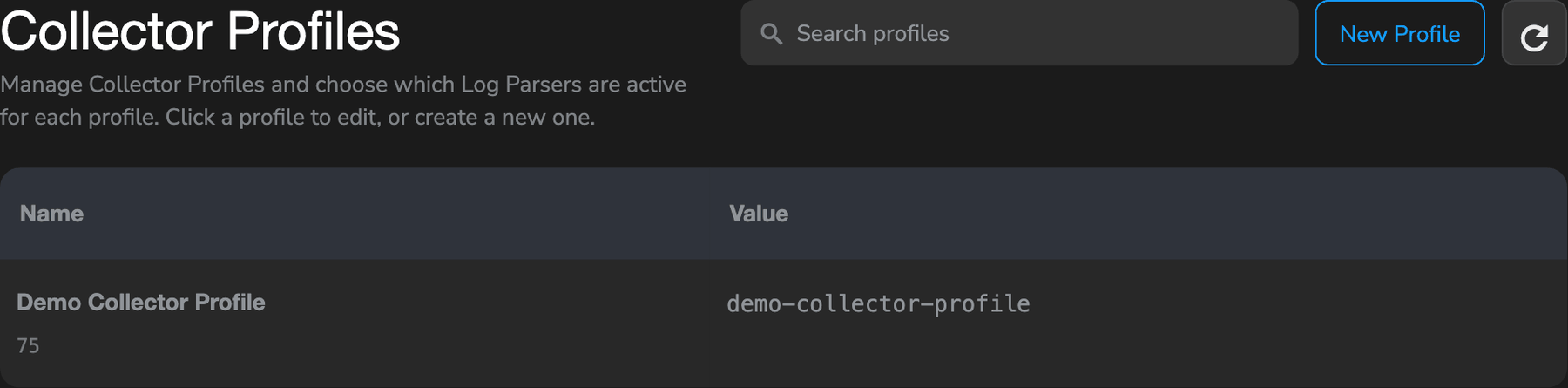
Creating a Collector Profile
- Navigate to Integrations → Secure60 Collector → Collector Profiles
- Click “New Profile” or “Add Item”
- Enter a descriptive name for your profile (e.g., “Cisco ASA Logs”, “Web Application Logs”, “Authentication Events”)
- Optionally, provide a value identifier for the profile
Assigning Log Parsers to Profiles
- Select a profile from the list
- Add Log Parsers to the profile by:
- Creating new parsers directly in the profile
- Assigning existing parsers to the profile
- Set the order parsers run in: drag the selected parsers, or use the arrows. A parser that produces a field must run before an Enrichment Parser that looks it up.
Assigning Profiles to Collector Groups
- Navigate to Collectors
- Click on a collector group to view its details
- Assign one or more profiles to the group
- The collectors in that group will automatically use the parsers defined in the assigned profiles
Configuration Management
How configuration reaches the collector
Configuration is pulled, not pushed. Each collector asks the portal what it should be running, on a loop:
- The collector authenticates with its ingest token and asks for the configuration belonging to its
COLLECTOR_GROUP - The portal returns the parser code from every profile assigned to that group
- The collector validates the code in isolation before applying it — a parser that would not compile is rejected and the previous configuration keeps running
- Valid configuration is written to disk and picked up without a restart
- Unchanged configuration is skipped, so a collector that is already current does nothing
The poll runs every 60 seconds by default, so a parser saved in the portal is live on every collector in the group inside a minute. There is no redeployment, no container restart, and no window where the collector is running a half-applied configuration.
A collector with no COLLECTOR_GROUP set skips the sync entirely and runs on its environment file alone — which is what a collector deployed before this workflow existed will do until you assign it a group.
Portal-Based Configuration Benefits
Using the portal for collector configuration provides several advantages:
- No File Editing: Manage all configuration through the web interface
- Automatic Synchronization: Parser and profile changes reach every collector in the group within a minute
- Safe Rollout: Configuration that fails validation is never applied
- Visual Management: See all your collectors, profiles, and parsers in one place
- Easy Updates: Modify parsers and profiles without redeploying collectors
- Collaboration: Multiple team members can manage configuration through the portal
Configuration Workflow
The recommended workflow is:
- Initial Setup: Create collector groups and generate
.envfiles - Deploy Collectors: Use the generated
.envfiles to deploy collectors - Monitor Unknown Collectors: Review unknown collectors and assign them to groups
- Create Profiles: Build profiles for different log types or environments
- Build Parsers: Create parsers using Log Patterns, Search, or manual creation
- Assign Profiles: Link profiles to collector groups
- Iterate: Refine parsers and profiles as you learn more about your log data
Advanced Configuration
A few features are not yet managed through this workflow and are still configured on the collector itself — data masking and privacy controls among them. Those live on the Manual Configuration page, which generates a larger environment file, and they are read at start-up rather than synced.
For anything else, contact integrations@secure60.io.
See the Manual Configuration documentation for details on advanced configuration options.
Best Practices
Organizing Collector Groups
- Use descriptive names that reflect the purpose or location of collectors
- Group collectors by environment (production, staging, development)
- Group collectors by function (network devices, web servers, applications)
- Group collectors by geographic location if applicable
Designing Collector Profiles
- Create profiles for specific log types (e.g., “Cisco Logs”, “Apache Logs”, “Auth Events”)
- Create profiles for specific use cases (e.g., “Security Monitoring”, “Compliance Logging”)
- Keep profiles focused - don’t mix unrelated log types in one profile
- Use descriptive names that indicate what the profile contains
Building Effective Log Parsers
- Start with Log Patterns when available - they provide the best starting point
- Extract security-relevant fields (usernames, IPs, success/failure status)
- Use meaningful field names that align with the Secure60 Common Information Model
- Test parsers against real log data before deploying widely
- Document parser purpose and extracted fields
- Review and refine parsers as log formats evolve
Managing Unknown Collectors
- Regularly review the “Unknown Collectors” section
- Assign unknown collectors to appropriate groups promptly
- Use descriptive group names to make assignment decisions clear
- Monitor event counts to identify important collectors that need configuration
Getting Help
For assistance with portal-based collector configuration:
- Documentation: Review this guide and related documentation
- Portal UI: Use the in-portal help and tooltips
- Integrations Team: Contact integrations@secure60.io for:
- Custom parser development
- Complex log format parsing
- Deployment assistance
- Best practice recommendations
We strongly recommend working with our Integrations team for custom advice and onboarding assistance specific to your organization’s needs.

Related
- Enrichment Parsers — portal-managed lookup tables, chained lookups and per-event project routing
- Client Certificates — require a client certificate on TLS syslog and HTTPS, and rotate client and CA certificates
- Manual Configuration — environment variables and advanced settings not yet in the portal
- Implement Data Masking — the privacy controls on the Manual Configuration page
- Common Information Model — the field names parsers should map onto
- Firewall and Network Device - Integration Guide — worked parser examples for vendor syslog formats
- Nginx - Integration Guide — a worked example using
parse_nginx_log
 Back to top