Rules
A rule watches the data in a project and decides when something warrants attention. When its conditions match, it raises a signal, scores an entity, or creates a threat.
Rules do not run on their own. They live in a rule group, and a rule group runs when it is deployed to a project. Everything below follows from that.
How rules reach a project
There are two levels, and keeping them apart explains most of the interface.
| Where it lives | What it is | |
|---|---|---|
| Rule group (the pack) | An organisation | The authoritative copy. Editing it here changes the rule for everyone who runs it. |
| Deployment | A project | The pack switched on for one project, with an update policy. |
A rule group in your organisation does nothing until it is deployed. A deployed rule group runs every rule inside it against that project’s data, on each rule’s own schedule.
Detection Rules is where all of this happens — the left-hand list is your organisation’s library, and the page always works against one focused project, shown top right.
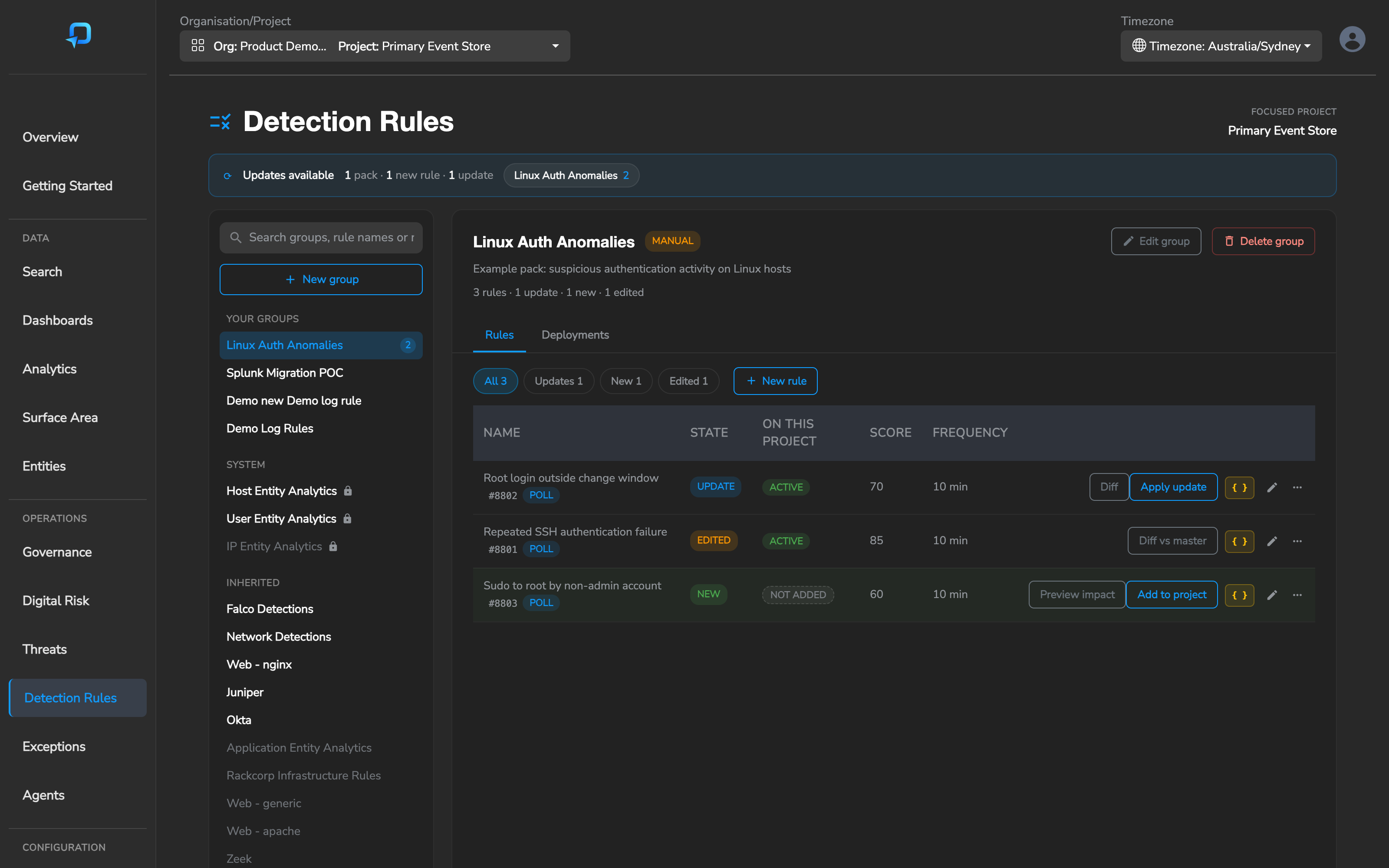
The library is grouped into three sections:
- Your groups — packs your organisation created and can edit
- System — entity analytics maintained by the platform
- Inherited — packs published to you by a parent organisation. You can deploy them, but not edit them
Packs shown dimmed are not deployed to the focused project.
Managed rules
Your subscription includes managed rule groups that Secure60 maintains, updates and extends. These cover applications, devices, operating systems and cloud platforms, alongside entity analytics rules that score behaviour over time.
The two work best together: technical detections catch a specific bad thing happening, entity analytics notice that a user or host is accumulating risk across many smaller events. Combining them produces strong detection with low false-positive rates.
Creating a rule group
Select New group at the top of the library.
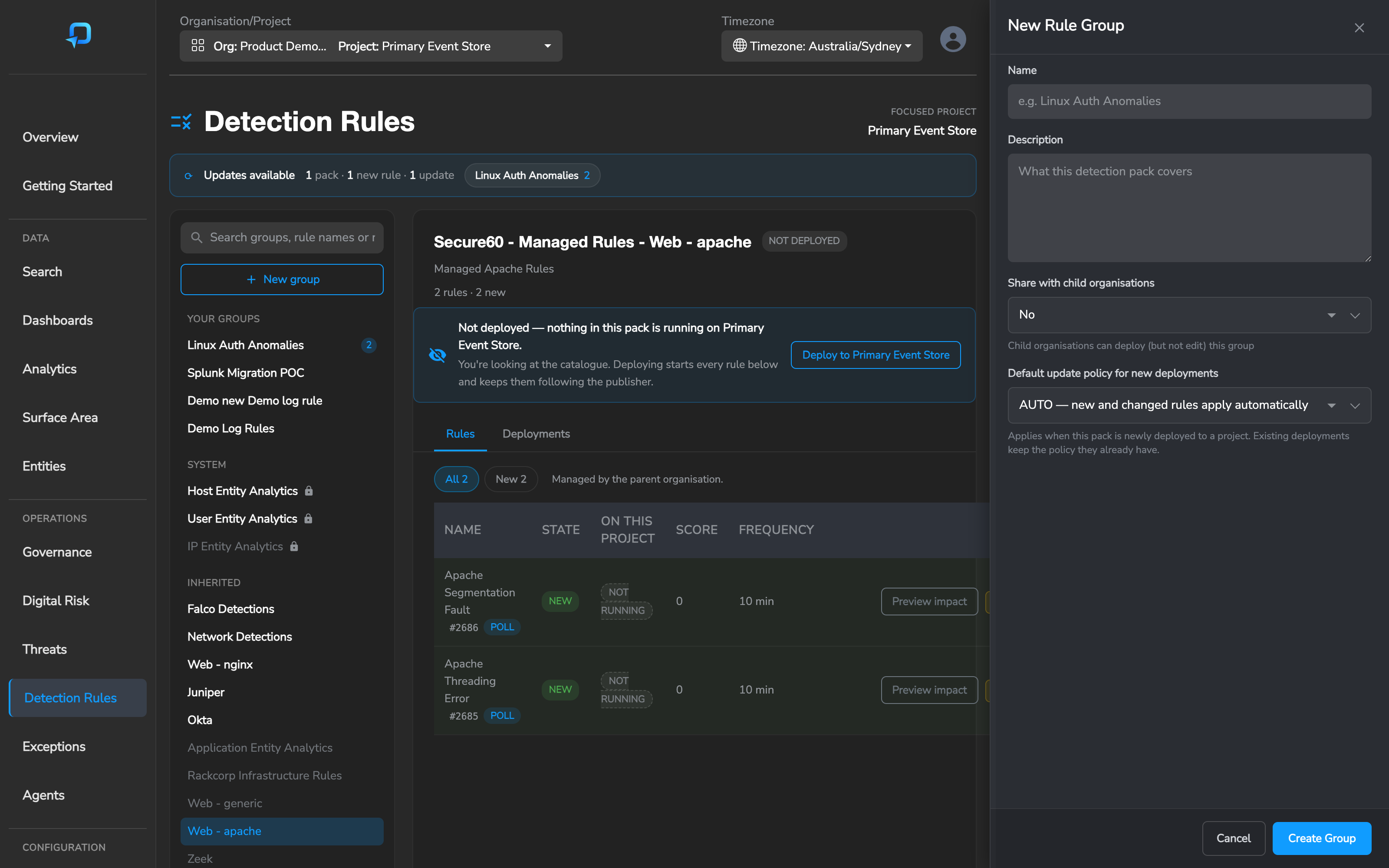
- Name and Description — what the pack covers
- Share with child organisations — publishes the pack to organisations beneath yours. They can deploy it; they cannot edit it
- Default update policy for new deployments — the policy a project gets when this pack is newly deployed. It does not change projects already running it
Creating the group does not start anything. Add rules to it with New rule, then deploy it.
Deploying to a project
An undeployed pack shows its catalogue, not something that is running. Nothing in it is evaluating your data, and the rules read NOT RUNNING.
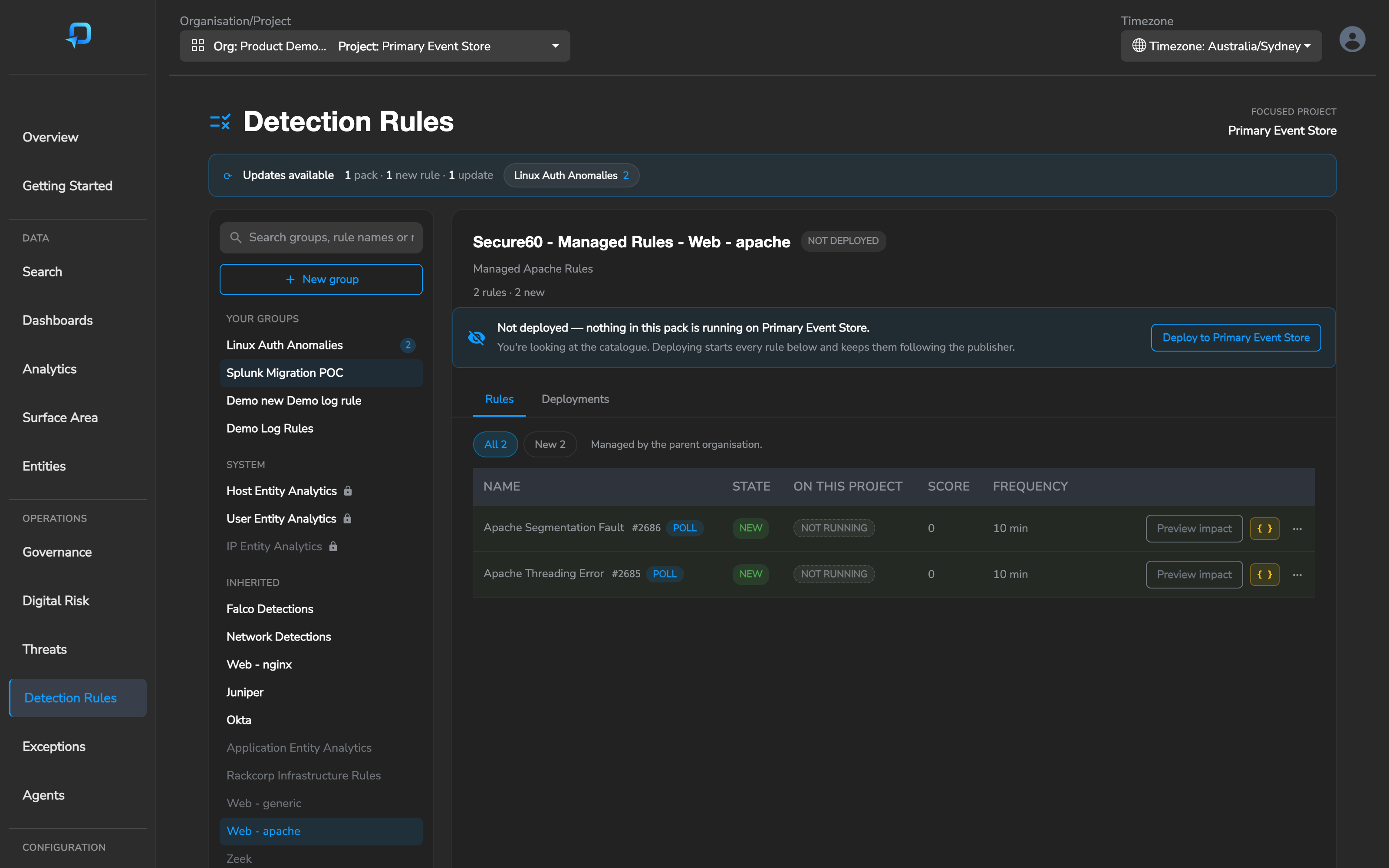
Select Deploy to start it on the focused project. To manage more than one project, use the Deployments tab, which lists every project in the organisation and lets you deploy, pause or remove the pack per project.
AUTO and MANUAL updates
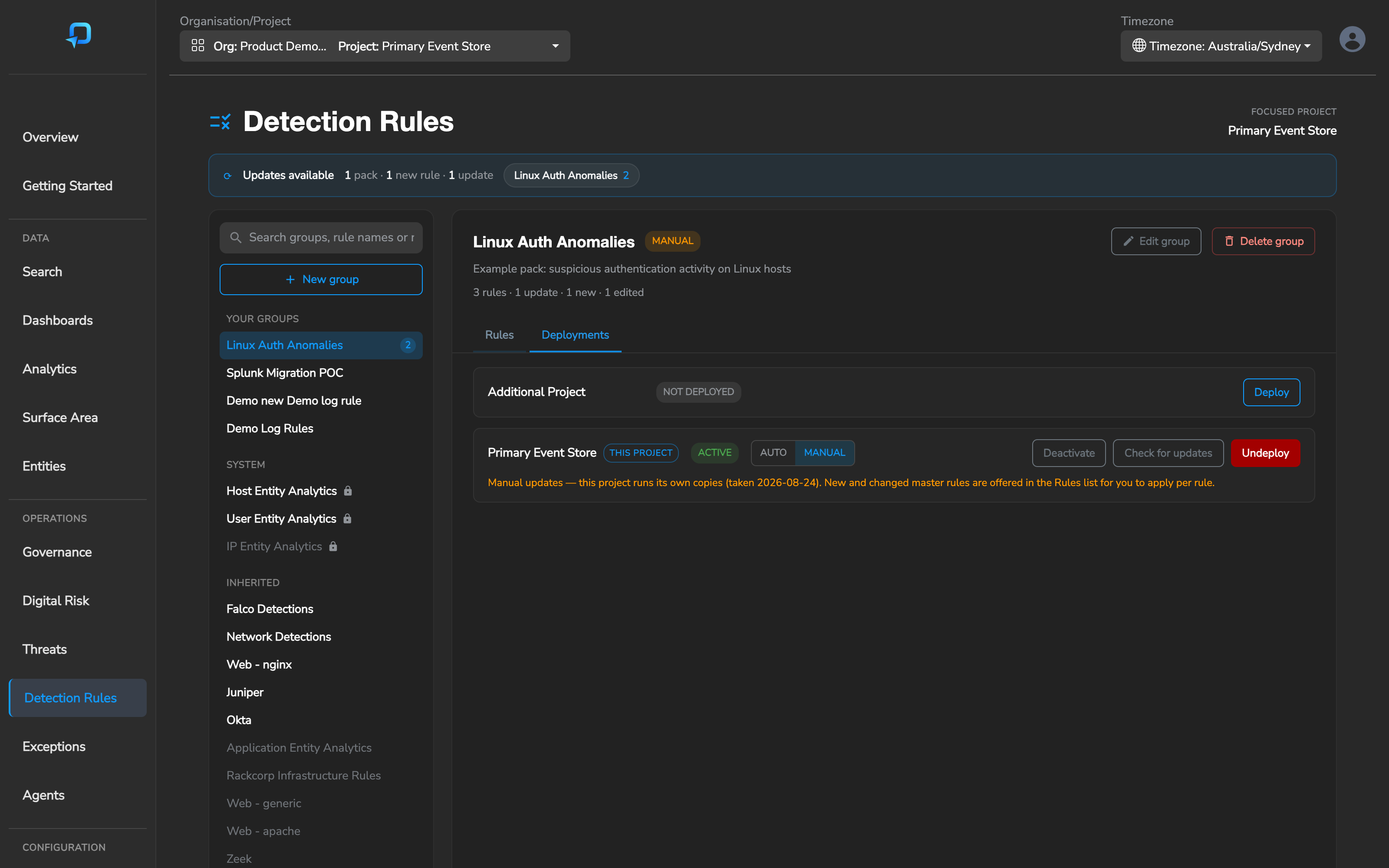
Every deployment has an update policy. This is the single most important choice on the page, because it decides what happens when Secure60 — or your own organisation — changes a rule you are running.
AUTO — the project runs the published rules directly. Changed rules and brand-new rules take effect immediately, with no action from you. Best for entity analytics and for packs you want to track without maintenance.
MANUAL — the project takes its own copy of each rule. Changes upstream are offered rather than applied, and you choose what to take, rule by rule. Best for packs where a surprise rule could raise a flood of threats in an environment you know better than the publisher does.
Switch between them on the Deployments tab. Switching to AUTO discards the project’s copies and returns it to the published rules; switching to MANUAL takes fresh copies of what is running.
Editing a rule in an AUTO pack
Worth knowing before it surprises you: if you override a rule on a project while the pack is on AUTO, that rule stops receiving updates. It becomes your copy, and later changes by the publisher no longer reach it.
Every other rule in the pack keeps updating normally, and newly published rules still arrive. Only the rule you edited is pinned. The rule shows as EDITED in the list, so it is visible — but the pack still reads AUTO, because the pack as a whole still is.
To put the rule back under automatic updates, use Revert to master from its row menu.
Working with updates
On a MANUAL deployment, each rule carries a state describing it relative to the published version. Anything needing a decision is counted in the band at the top of the page and badged against the pack in the library.
| State | Meaning | What you can do |
|---|---|---|
CURRENT |
Your copy matches the published rule | Nothing needed |
UPDATE |
The publisher changed the rule since you took your copy | Diff, then Apply update |
NEW |
A rule was added to the pack and you have not taken it | Preview impact, then Add to project |
EDITED |
You changed your copy; the publisher has not moved | Diff vs master, or revert |
EDITED + UPDATE |
Both changed — applying the update replaces your edits | Compare carefully, then apply or Keep mine |
The On this project column is separate, and describes whether the rule is actually running here: ACTIVE, PAUSED, NOT ADDED, or NOT RUNNING if the pack is not deployed.
Comparing before you apply
Diff shows exactly what would change. It leads with the specific fields that moved rather than two blocks of JSON, so a change reads as a single line — a threshold going from _count >= 2 to _score >= 2, for example.
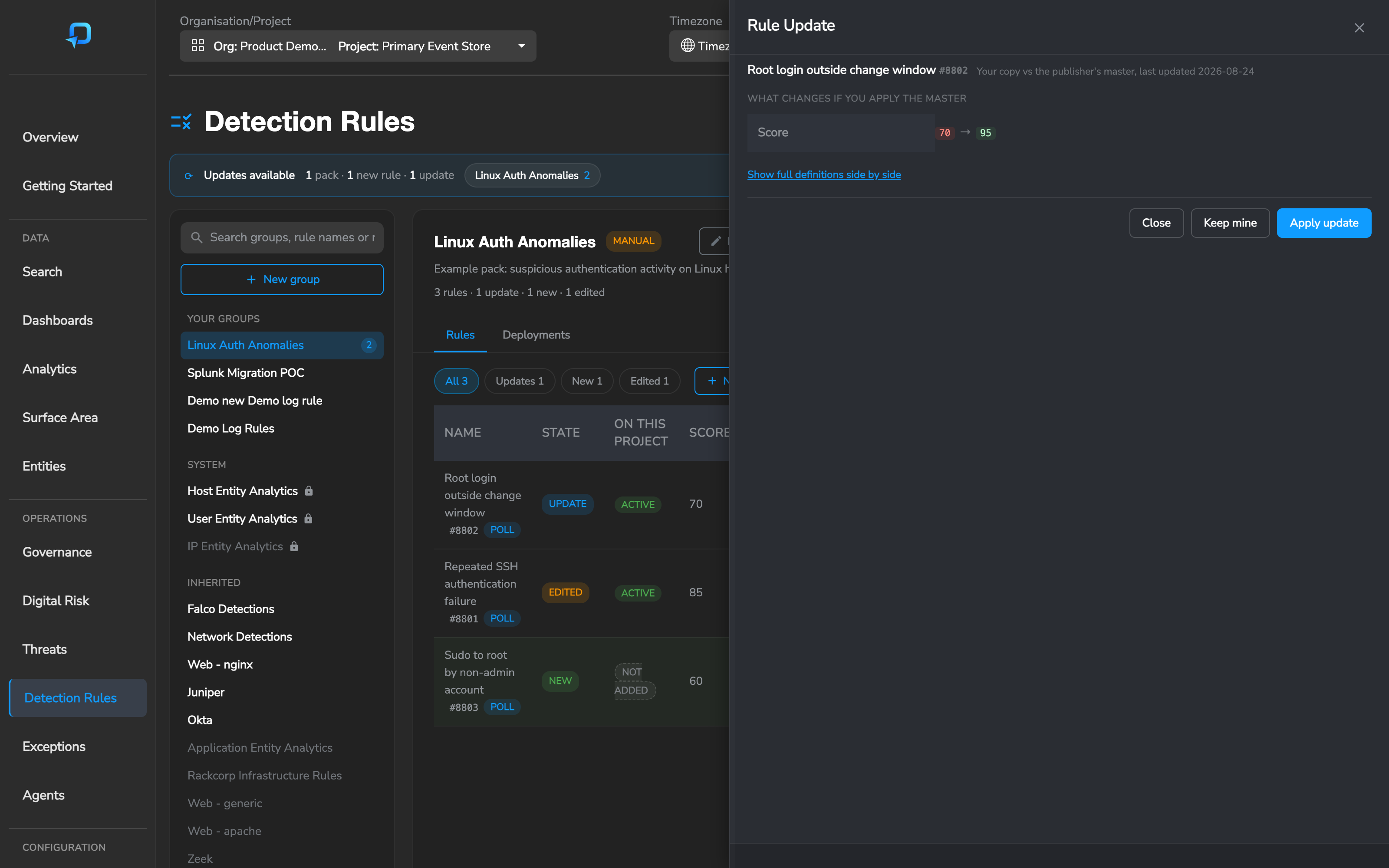
Compare with master is available on every rule from its row menu, not only on rules with a pending update.
Other actions on each rule:
- History — a timeline of changes, both the publisher’s and your own
- Activity — threats and signals this rule has produced
- Preview impact — how often the rule’s query would have matched over a recent window, before you turn it on
- { } — view or edit the rule definition
Once a rule is running, Execution Activity shows what it has actually done: how often it ran, how much it matched, and whether the actions it queued produced threats or were deduplicated away.
Changing the published rule
Editing a rule in Your groups changes the master. Projects on AUTO pick it up immediately; projects on MANUAL are offered it as an UPDATE.
Deleting a rule, or a whole group, retires it everywhere it runs. Threats already raised are kept — only the rule stops. Both actions ask for confirmation and state what they affect first.
Elements of a Rule
A Rule is the part of the Secure60 platfrom that is responsible for looking at customer data and idenfitying conditions in that data that prompt the system to perform an action or response.
A Rule internally is a JSON object that has a number of elements. You configure a Rule through the Secure60 portal or via the Secure60 API.
Here is an example rule, we discuss the various elements below:
{
  "conditions": [
    {
      "query": "(event_command ~ '(user|add|expires:never)') ",
      "data_type": "event",
      "trigger": "1"
    }
  ],
  "actions": [
    {
      "action_type": "create_signal",
      "_category": "new-user-created-via-net.exe-with-never-expire-option",
      "_description": "Detects creation of local users via the net.exe command with the option \"never expire\"\r\n\n   references: https://thedfirreport.com/2022/07/11/select-xmrig-from-sqlserver/    level: high",
      "_name": "New User Created Via Net.EXE With Never Expire Option",
      "_score": 50
    },
    {
      "action_type": "create_entity",
      "_entities": [
        {
          "_entity_name": "ip_src_address",
          "category": "new-user-created-via-net.exe-with-never-expire-option",
          "_score": 50
        },
        {
          "_entity_name": "user_name",
          "category": "new-user-created-via-net.exe-with-never-expire-option",
          "_score": 50
        },
        {
          "_entity_name": "host_name",
          "category": "new-user-created-via-net.exe-with-never-expire-option",
          "_score": 50
        }
      ]
    }
  ]
}
Rule Execution
The Rule Execution field defines how the Rule is stored and run within the Secure60 platform.
Execution is defined at the Rule object under Organisation Settings and cannot be changed on a Project by Project basis.
There are 2 options when creating a Rule regarding how the Rule will be implemented:
- Polling (Default) - These Rules run on a frequency and look back at a specific data period for each execution
- Supports the full rich query language
- Automatically ensures all time periods are covered when looking at data
- Allows conditions that group data by specific fields or over a time period
- Streaming - These Rules are applied as data enters the Secure60 platform
- Supports a limited query language
- Supports conditions that use all operators except regex type
- Only looks at individual Events one by one. No cumulative or ranges of time window supported
- Supports a limited query language
Rule Conditions
This component of a rule defines what data to query and how to filter the source data to specific items of interest.
Key elements:
query: The query (in Secure60 Syntax) that filters datadata_type: The type of data to query, eg. Event for raw events
Other elements:
-
Allow Lists:
list_allowApplies a List to the Rule processing. Allow Lists (also known as Whitelists) stop a Rule from triggering if a value in the List matches the data returned by the Rule- Stored an as Array
Array Elements:
list_id: Specifies the List ID to applydata_field: Specifies the fieldname that will be checked for a match in the List
- Stored an as Array
Array Elements:
-
Trigger Lists:
list_triggerApplies a List to the Rule processing. Trigger Lists activate a Rule to trigger if a value in the List matches the data returned by the Rule- If configuring an Exclusion, use a Trigger so that the Exclusion matches and this will avoid firing actions
- Stored an as Array
Array Elements:
list_id: Specifies the List ID to applydata_field: Specifies the fieldname that will be checked for a match in the List
-
trigger: How many results are need to trigger the Rule Actions to be executed. Default:1. Only applies to rules withexecutionPOLLING
Refer to Secure60 Syntax for more details on query approach, Lists for a List overview on Lists and also the full API specification is available.
Rule Actions
Rules have Actions, which are internal operations inside the Secure60 platform that happen when a Rule Condition is met
Key elements:
action_type: The type of action to execute:create_signalcreate_entitycreate_threatupdate_control_status— Updates linked governance controls to a specified compliance status (e.g.NON_COMPLIANT). The rule must be linked to one or more controls in a governance register. When the rule fires, all linked controls are updated, the compliance rollup recalculates, and control owners are notified via their review digest. See the Governance Lifecycle Workflow guide for the full setup walkthrough
Other elements:
-
score: Threats and Signals can both have a score associated with their level of risk. Score can be set via a field in the Rule or as part of the Actions definition. More specific (Actions definition) takes precedence.
-
severity: Severity indicates a grouping of Threats based on risk. Valid values are:
INFO,LOW,MEDIUM,HIGH. A Threat object can have a severity level manually set via the Actions definition or it will be automatically set based on thescoreof the Threat. Severity value fromscorenumber is defined as follows:score0 =severityINFOscore> 0 and < 80 =severityLOWscore>= 80 and < 90 =severityMEDIUMscore>= 90 =severityHIGH
-
source: If you add a source field to the
create_threataction, we will look in the data that has triggered the Threat for a field name that is a match for the value of thesourcefield (with fallback to using the text in the field).An example where this is useful is that you can have a single rule that creates multiple threats for a specific entity (perhaps a server host_name) the source field might be a technology or problem area.
Specifically if a vulnerability is detected in PHP and an Event sent into the platform, the source could be the php version and make a threat based on that. You can then have other vulnerabilities with their own source value, like nginx that will create a new threat but you wont get multiple threats for php or nginx.
You need to tick the checkbox
Check by Rule, Entity, Sourceinside the Create Threat Action defintion for the system to not create duplicate Threats.
Once a Rule’s
create_threataction raises a Threat, it lands on the Threats Overview where it is triaged through groups and states, responded to, and tracked to closure. See Threat Management for that end-to-end lifecycle.
API Definition for full specification of Rules
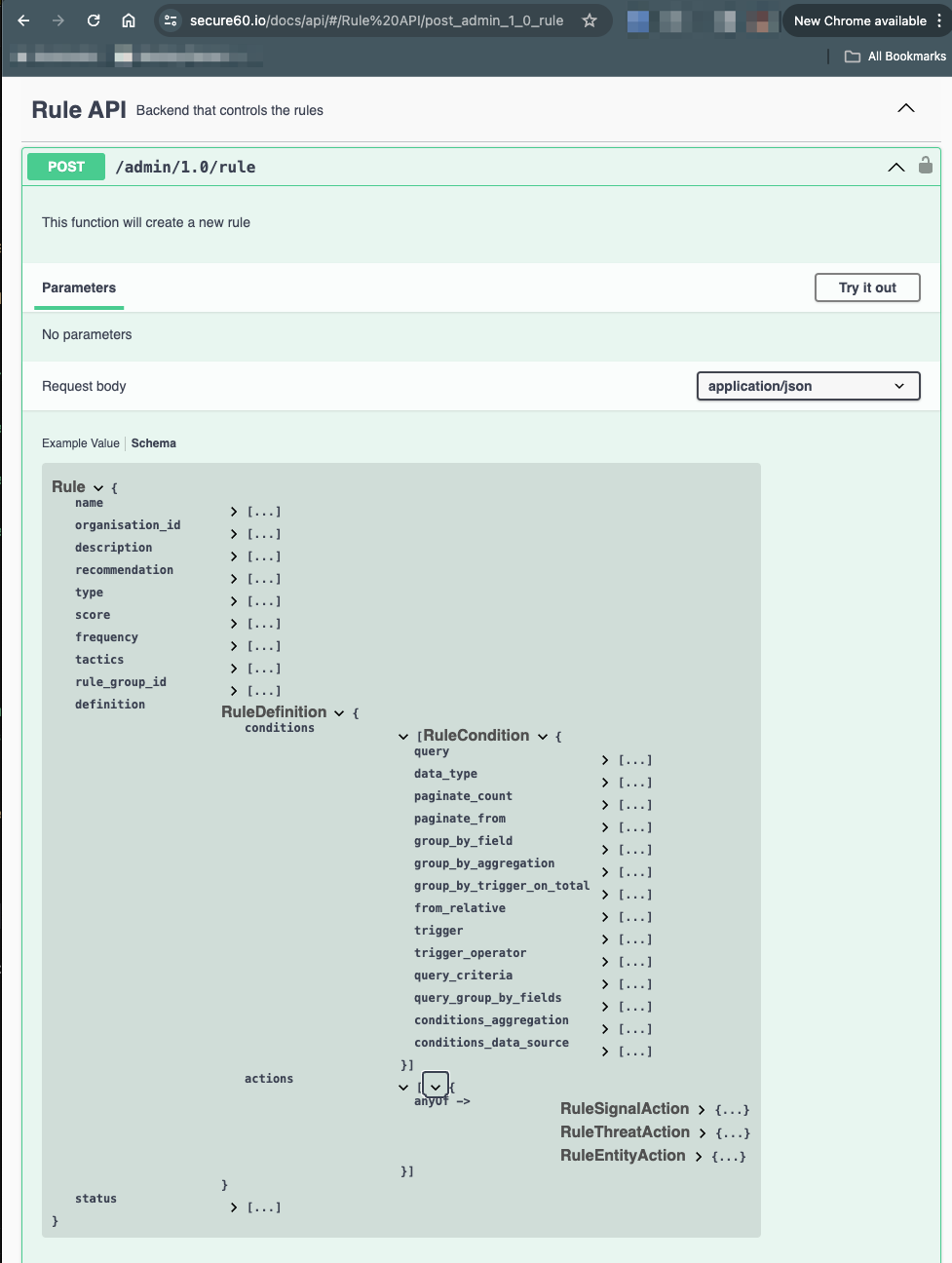
The Secure60 API definition contains the full detail of every field than can be used in a rule: https://www.secure60.io/docs/api/#/Rule%20API/post_admin_1_0_rule
Sample from API:
 Back to top