Log Parsers
A log parser matches a type of log and pulls structured fields out of it. Raw log lines arrive as text; a parser turns that text into named fields the rest of the platform understands — a username, a source IP, whether a login succeeded.
If a parser already exists for your log source, deploy it from Parser Templates instead of writing one. This page covers building your own.
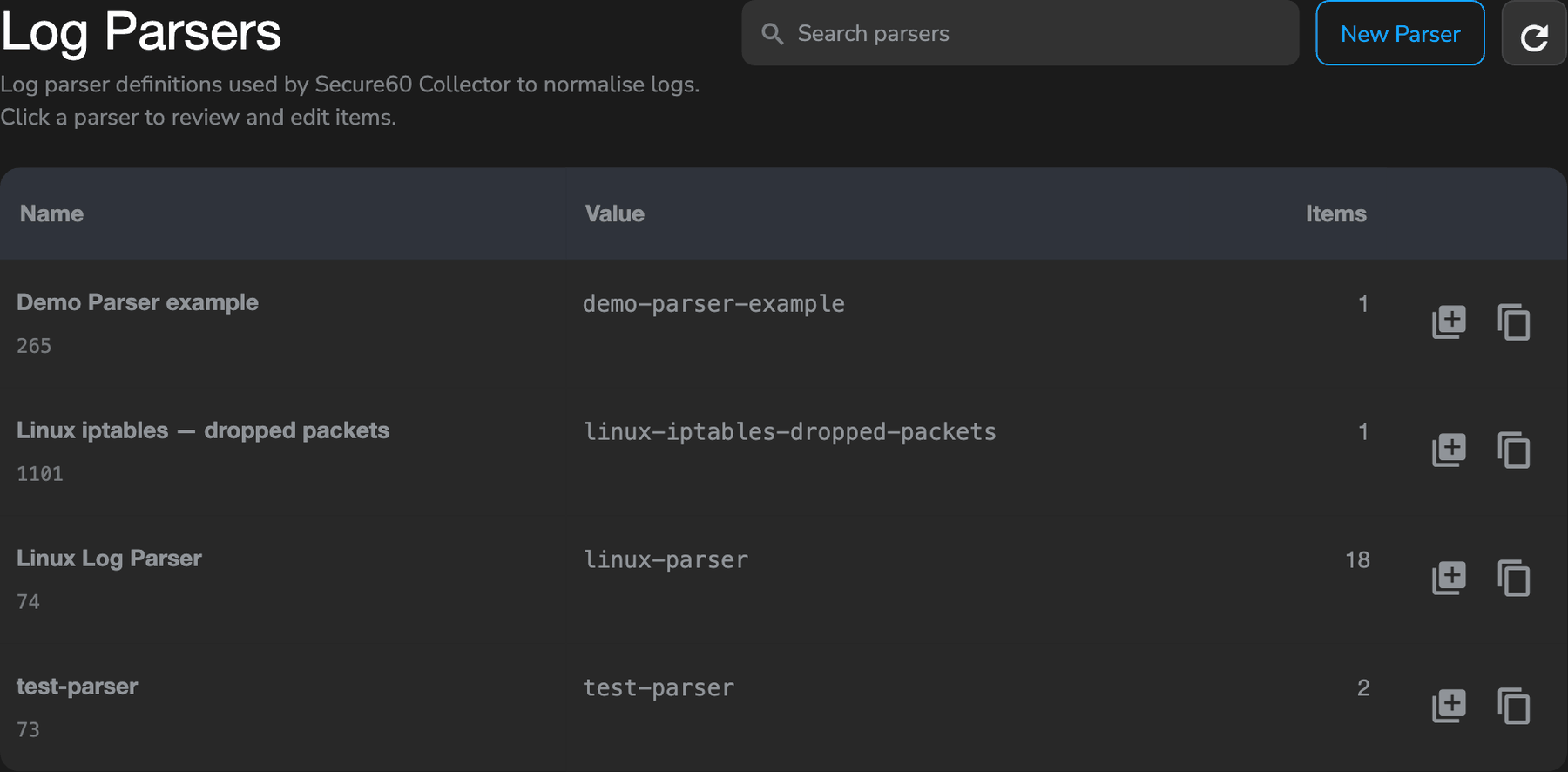
Log Parsers
Log Parsers are objects that match specific log types and extract valuable context from log messages. They are essential for understanding security contexts and enabling effective analysis.
Each parser holds one or more items — individual statements, each with its own condition and VRL — and the Items column shows how many.
Purpose of Log Parsers
Log Parsers serve several critical functions:
- Log Type Matching: Identify and categorize different types of logs (e.g., authentication logs, network logs, application logs)
- Context Extraction: Extract important fields from unstructured log messages, such as:
- Usernames
- IP addresses
- Login success/failure status
- Event types
- Timestamps
- Error codes
- And many other security-relevant fields
- Field Enrichment: Add structured fields to events for better searchability and analysis
- Normalization: Standardize field names and formats across different log sources
Example Use Cases
Authentication Logs:
- Extract username, source IP, login success/failure status, and timestamp from authentication events
- Enable detection of brute force attacks, account compromises, and unauthorized access attempts
Network Device Logs:
- Extract source/destination IPs, ports, protocols, and connection status from firewall and router logs
- Enable network traffic analysis and threat detection
Application Logs:
- Extract user actions, error codes, transaction IDs, and performance metrics
- Enable application security monitoring and operational insights
Creating Log Parsers
There are three main ways to create Log Parsers in the portal:
Method 1: From Log Patterns (Recommended)
This is the most automated approach, leveraging pattern detection:
- Navigate to Integrations → Secure60 Collector → Log Patterns
- Review detected patterns (requires the log pattern detector container to be deployed)
- Select a pattern that matches the log type you want to parse
- Use the interactive parser builder to:
- Click on parts of the pattern (especially
<*>wildcards) to extract them as fields - Define field names for extracted values
- Set conditions for when the parser should apply
- Click on parts of the pattern (especially
- Add static fields if needed
- Review the generated VRL (Vector Remap Language) code
- Save the parser to a Collector Profile
Method 2: From Search Results
You can build parsers directly from log data you’re viewing:
- Navigate to the Search page in the Secure60 Portal
- Find log events that represent the log type you want to parse
- Expand a row to view the full log message
- Highlight text in the log message that you want to extract
- Use the context menu to “Add to Parser” or “Build Parser”
- Follow the parser builder workflow to create the parser
Method 3: Manual Parser Creation
For advanced users or custom scenarios:
- Navigate to Integrations → Secure60 Collector → Log Parsers
- Click “Add Item” or “New Parser”
- Configure:
- Parser Name: A descriptive name for the parser
- Parser Value: An optional identifier
- Conditions: When the parser should apply (e.g., when
source_nameequalscisco_asa) - VRL Code: Write or edit Vector Remap Language code to define parsing logic
- Save the parser to a Collector Profile
Parser Configuration
Each Log Parser consists of:
- Item Name: A unique identifier for this specific parser rule
- Conditions: Rules that determine when the parser applies (e.g.,
when field source_name is cisco_asa) - VRL Code: The actual parsing logic written in Vector Remap Language
- Uses functions like
parse_regex!()to extract fields using regular expressions - Can merge extracted fields into the event
- Can add static fields or transform data
- Uses functions like
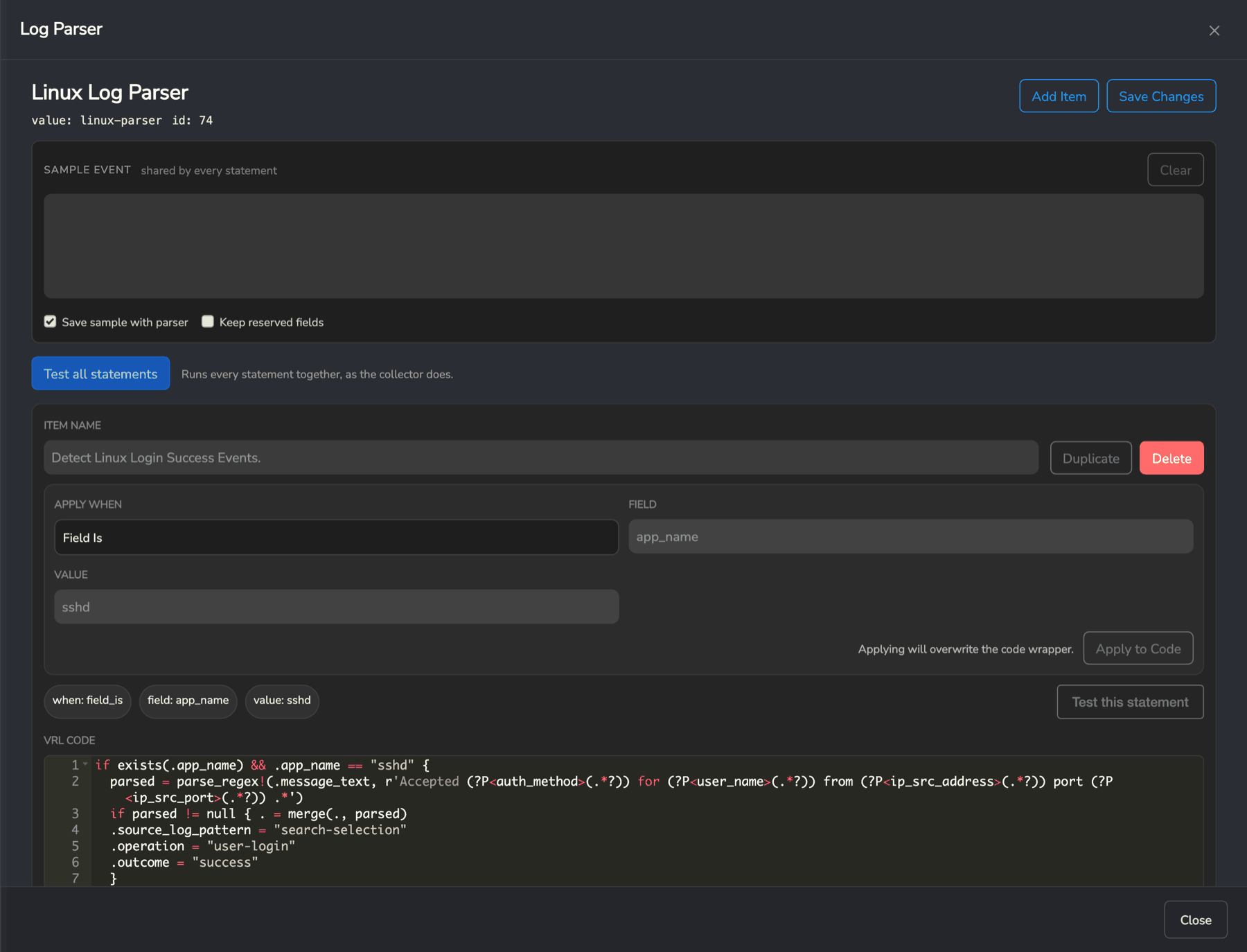
The parser editor puts the condition and the code side by side:
- Sample Event takes a real log line and is shared by every statement in the parser
- Apply When builds the condition —
Field Is, the field name, and the value to match - VRL Code is the parsing logic, which Apply to Code can generate from the condition above it
- Test this statement runs your VRL against the sample and shows the fields it produced, and Test all statements runs the whole parser the way the collector will
Test before you save. Verifying a parser against a real line takes seconds; discovering the mistake in production data takes days.
Example Parser
An example Log Parser for Cisco ASA “Teardown” logs:
Conditions:
- When:
field_is - Field:
source_name - Value:
cisco_asa
VRL Code:
if exists(.source_name) && .source_name == "cisco_asa" {
    parsed = parse_regex!(.message_text, r'Teardown local-host (?P<ip_src_address>(.*?)) du')
    if parsed != null { . = merge(., parsed) }
    .vendor = "cisco"
}
This parser:
- Checks if the log is from a Cisco ASA device
- Extracts the source IP address from “Teardown” log messages
- Adds a
vendorfield set to “cisco”
Testing against a real event
A parser is only as good as the event you tested it against. Each parser holds a sample event — a real log line, captured from your own data — and every test runs against it.
There are three ways to get a sample in:
- Paste it. Copy an event from Search (Copy event on any result) and paste it into the sample box. Raw JSON, portal field/value lines and a plain log line are all accepted.
- Fetch it. Pull a recent event straight from the project.
- It comes with the parser. A parser deployed from a template arrives with the sample it was proven against.
Two buttons matter:
- Test runs a single statement against the sample and shows you which fields it set.
- Test all runs every statement concatenated into one program, which is exactly how the collector runs them.
Use Test all before saving. A statement can pass on its own and still break the parser as a whole — an earlier statement may have already consumed the field it was looking for. More importantly, if the combined program does not compile, the collector rejects the whole configuration and keeps running the last good one. Nothing appears to change, and the parser you just saved silently never takes effect.
Field names
Parsers write into the Common Information Model. Use CIM names and detections, dashboards and reports work without any further mapping; invent your own and nothing downstream will find them.
The editor lists the available CIM fields and will autocomplete them as you type, so you do not need to memorise the set.
Search Integration
The Secure60 Portal’s Search page integrates with the parser creation workflow, allowing you to build parsers directly from real log data.
Building Parsers from Search
- Navigate to the Search page
- Query for logs that represent the type you want to parse
- Expand a log row to view the full message
- Highlight text in the log message that you want to extract as a field
- Use the context menu or action button to:
- “Add to Parser” - Add the highlighted text to an existing parser
- “Build Parser” - Create a new parser starting with this extraction
- Follow the parser builder workflow to complete the parser configuration
This approach is particularly useful when:
- You have specific log examples you want to parse
- You need to extract fields that aren’t easily identified by pattern detection
- You want to verify parser behavior against real data before deploying
 Back to top