VPN and Remote Access - Integration Guide
This guide shows you how to collect VPN and remote-access logs in Secure60, and how to map them so that remote logins join the same user analytics as every other authentication in your estate.
Overview
A remote-access log records three things: who authenticated, from where, and whether it worked. Recording them on the same fields your directory, cloud, and application logins use is what makes a stolen credential visible — the same account, at 3am, from a country it has never connected from before.
Most VPN concentrators are the same devices covered in the Firewall and Network Device guide, so delivery is usually already solved. What this guide adds is the authentication mapping.

Prerequisites
- A deployed Secure60 Collector
- Syslog egress from the VPN concentrator to the collector on
514/udpor6514/tcp(TLS) - For cloud VPN services: the relevant cloud integration — S3 or Azure
Step 1: Configure the device
Cisco ASA with Secure Client (AnyConnect)
logging enable
logging timestamp
logging trap informational
logging host <INTERFACE_NAME> <S60_COLLECTOR_IP_ADDRESS>
The messages that carry remote-access authentication are:
| Message ID | Meaning |
|---|---|
%ASA-6-113004 |
AAA authentication successful |
%ASA-6-113005 |
AAA authentication rejected |
%ASA-6-113039 |
Session established |
%ASA-4-113019 |
Session disconnected, with duration and byte counts |
%ASA-6-722051 |
IPv4 address assigned to the client |
Keep the trap level at informational. Dropping to warning removes the successful logins, and a login history containing only failures cannot establish a baseline.
FortiGate SSL VPN
config log syslogd setting
    set status enable
    set server "<S60_COLLECTOR_IP_ADDRESS>"
    set port 514
    set mode udp
    set format default
end
SSL VPN events arrive as key=value with subtype=vpn, action=ssl-login-fail, action=tunnel-up, and similar.
Palo Alto GlobalProtect
Add a syslog server profile under Device → Server Profiles → Syslog, then attach it under Device → Log Settings → GlobalProtect. PAN-OS 9.1 and later write GlobalProtect events to their own log type, which carries the stage (before-login, login, tunnel), the result, the client OS, and the public and private addresses.
OpenVPN
OpenVPN Access Server and the community server both log through the host’s syslog. Add to the server configuration:
verb 3
log-append /var/log/openvpn.log
Then forward via rsyslog as described in the Linux Server guide, or set the OpenVPN daemon to log to syslog directly with --syslog.
Cloud VPN services
| Service | Path into Secure60 |
|---|---|
| AWS Client VPN | Connection logs → CloudWatch Logs → S3 → Integrate S3 |
| Azure VPN Gateway / P2S | Diagnostic settings → Configure Azure Cloud |
| Zscaler Private Access, Netskope, Cloudflare Access | Vendor log streaming to object storage, or an HTTPS push to the collector on port 443 |
WireGuard
WireGuard has no concept of a user session, so there is no authentication event to collect — peers are cryptographic keys, and the kernel logs handshakes at best. Where WireGuard is the transport, take your identity signal from whatever sits in front of it (the SSO or bastion that issues the configuration) and use interface and flow data for the tunnel itself.
Step 2: Deploy the parser
A VPN authentication is a user event, and normalising it as one puts remote logins into the same analytics as Windows, cloud, and application logins — so a change in an account’s behaviour is visible across all of them rather than per device.
Deploy the parser for your concentrator to do that normalisation. Parsers are managed in the portal under Integrations → Secure60 Collector → Log Parsers, assigned to a Collector Profile, and the profile is assigned to your Collector Group. The collector picks up the configuration automatically, with no redeployment.
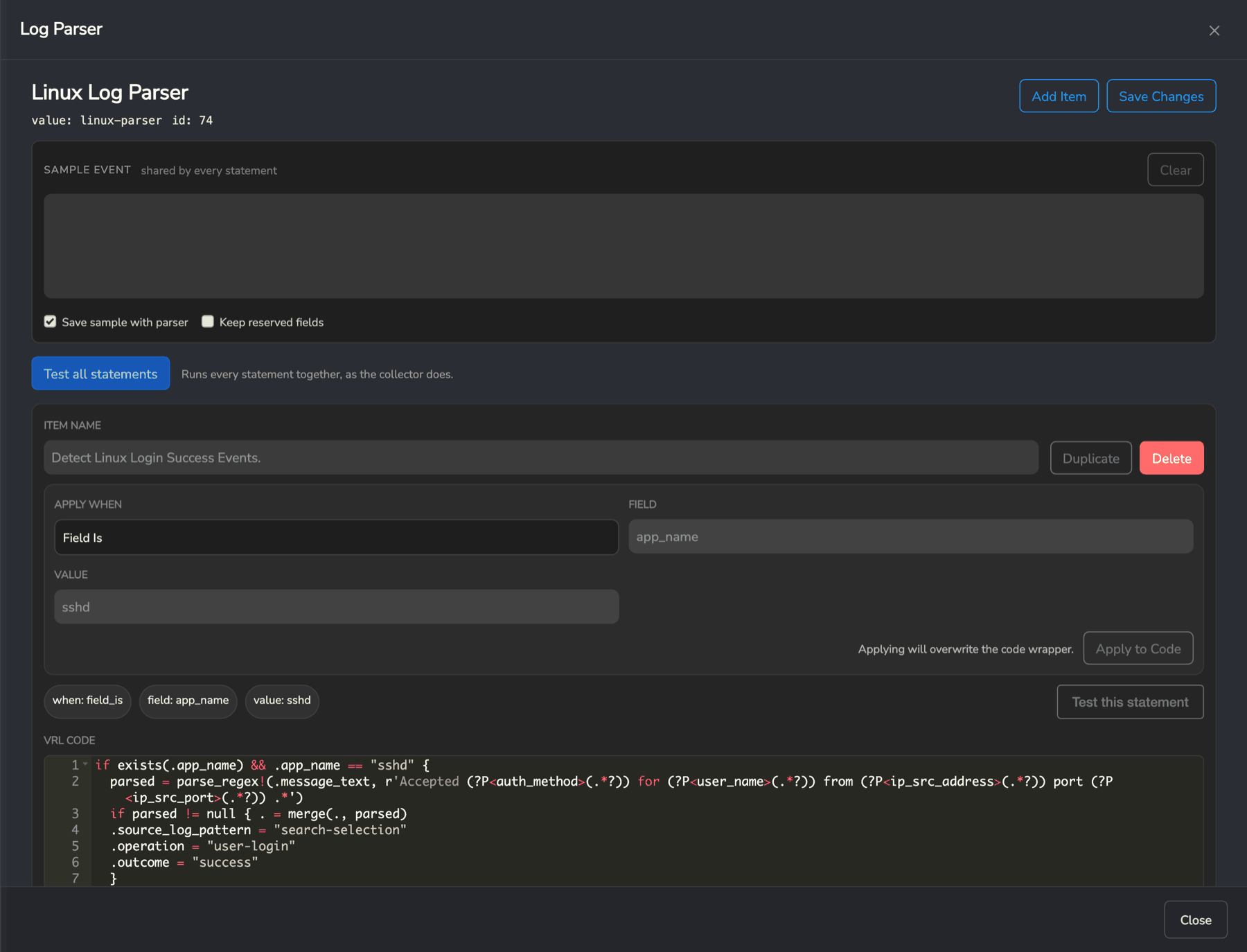
Each parser statement carries a condition — typically Field Is on host_name or app_name, so it only touches that concentrator’s events — and the logic that extracts the account, the client address, and the result. The Sample Event box takes a captured log line and Test this statement shows the fields it produced.
Talk to our integrations team at integrations@secure60.io about the right parser for your VPN platform.
Step 3: Verify and use the data
In Search, confirm the events are arriving with users attached:
technology_group=remote-access
Then the queries the integration exists to answer:
| Query | What it tells you |
|---|---|
technology_group=remote-access AND outcome=failure |
Failed remote logins — the password-spray view |
technology_group=remote-access AND ip_geo_country_code!=AU |
Remote access from outside your expected countries |
operation=user-login AND user_name=<account> |
Every login by one account, across VPN, directory, and cloud |
technology_group=remote-access AND outcome=success grouped by user_name |
Who is using remote access, and how much |
Because ip_src_address is enriched with country, city, and ASN at ingest, a login from a country an account has never used before is visible without any extra configuration. Entity Analytics tracks each user and each source address over time and scores the change, and Create Rules covers turning a specific pattern — repeated failures followed by a success, for example — into a detection.
Related
- Firewall and Network Device - Integration Guide — the same devices, and how to deliver their syslog
- Linux Server - Integration Guide — for host-based VPN daemons such as OpenVPN
- Entity Analytics — user and source-address behaviour over time
- Configure Azure Cloud and Integrate S3 — for cloud VPN services
- ISO 27001 A.8.16 Monitoring Activities — remote access monitoring evidence
 Back to top