Secure60 Browser
Overview
Secure60 Browser is a Chrome extension that runs an organisation’s Secure60 policy in the browser. It is the third deployable beside the Secure60 Collector and the Secure60 AI Protector, and it is built to carry more than AI use cases. Its first module covers AI use that never passes through a gateway or an API: an employee typing into ChatGPT, Claude or Gemini on the web. For each AI site it records, warns on, blocks or checks each prompt with a Secure60 AI Protector before it is sent, as you decide. The events appear under AI → AI Activity with the source Secure60 Browser, beside the Protector, Secure60 agent and network sources.
What the browser does is set by configuration read from Secure60, not by a release of the extension. Two things make up that configuration, and site lists are the only way a site is named:
- A site list is a named list of “site → action”. Secure60 publishes six lists that every organisation inherits read-only and keeps up to date. Your organisation can add its own custom lists.
- A browser group is the set of browsers that run the same policy, usually one per department. It attaches site lists in order, each as listed or with one action for the whole list, for example “AI chat assistants: Block all”. The first attached list that names a site decides its action, and a site that is on no attached list is not watched.
A page for a warned or blocked site is a Secure60 notice shown before the site loads. On a site set to Protect, each prompt waits for a Secure60 AI Protector’s verdict before it is sent: allowed, sent with personal data masked, or stopped with a notice in the page. On every other site the extension does not change or hold back a prompt, and the page’s own request and response are never altered.
Key Capabilities
- Prompt and response record — the text of each exchange on ChatGPT, Claude and Gemini, with model, attached file names and conversation.
- One action per site — Record full, Protect, Metadata only, Visit only, Ignore, Warn or Block, set per site in a site list or for a whole list when a group attaches it.
- Prompt checks before send — on Protect sites the browser asks the group’s Secure60 AI Protector about each prompt and sends it, masks it or stops it. The Protector applies the same guardrail policy it applies to your own AI applications, and the user’s AI-site sign-in never leaves the browser.
- Warn and block — a Secure60 notice page replaces the site before it loads. A warning can be continued past for the browser session. Both are recorded.
- Corporate or personal account — the AI-site account is recorded and classified against your corporate email domains, so personal-account use of AI is visible.
- Discovery of AI sites — six Secure60 lists cover 53 AI sites, including DeepSeek, Perplexity, Copilot, Grok and Le Chat, with one visit record per site per user per 30 minutes where prompts are not recorded.
- Browser groups per department — Finance and Engineering can run different policy from the same extension.
- Lists Secure60 keeps current — new AI sites and site changes reach every browser on its next sync, and your custom lists keep their actions when a definition changes.
- One-paste setup — the portal generates a connection code; pasting it on the extension’s settings page connects the browser and sends a test event.
- Central control — a Chrome policy force-installs the extension and sets any setting; policy-set values are locked on the settings page.
- Outage tolerance — events queue in the browser (up to 2,000, kept across restarts) and send when the connection returns.
Actions
Every site has one action.
| Action | What the user sees | What is recorded |
|---|---|---|
Record full (full) |
The site works normally | Prompt, response, model, attached file names, conversation and the site account, where the site’s prompts can be read. Otherwise the visit |
Protect (protect) |
Each prompt is checked by the group’s Secure60 AI Protector before it is sent. An allowed prompt is sent unchanged, a masked prompt is sent with the findings replaced, and a blocked prompt is not sent and a Secure60 notice in the page gives the reason | Everything Record full records, plus the Protector’s decision, findings and how long the check took. See Protect |
Metadata only (metadata) |
The site works normally | Prompt size, a SHA-256 of the prompt and the number of attached files. No text and no file names |
Visit only (visit) |
The site works normally | That the site was opened: site, time and user |
Ignore (ignore) |
The site works normally | Nothing |
Warn (warn) |
A Secure60 notice says the site is not approved. The user may continue, and the site then works for the rest of the browser session | browser-site-warned when the notice is shown and again when the user continues, then the site is recorded as Record full |
Block (block) |
A Secure60 block page replaces the site | browser-site-blocked |
Prompt and response text is cut at max_content_chars (20,000 by default) per prompt and per response. A cut is flagged on the event with message_truncated or response_truncated.
Prompts can be read on ChatGPT, Claude and Gemini today, and on any site whose list entry supplies page selectors. On a site whose prompts cannot be read, Record full, Protect and Metadata only record the visit.
Warn and block act when a page loads, on the site’s main page and its frames. A site that becomes blocked while a tab is open is replaced at the browser’s next sync.
How the action for a site is chosen
For a site, the first of these that applies decides:
- A
sitesentry in browser policy, for example{"deepseek": "block"}. - The first site list attached to the browser’s group that names the site. If the group attached that list with one action, that action applies. If it attached the list as listed, the action on the list’s entry applies.
- Otherwise the site is not watched.
Because the first list wins, attach the lists that decide the most specific cases first. The list that decided is recorded on each event as site_list.
Protect: check prompts before they are sent
On a site with the action Protect, the extension holds each prompt when the user sends it and asks a Secure60 AI Protector for a verdict. The Protector runs the guardrail policy chosen for browsers (PII, secrets and prompt-injection filters, in protect or monitor mode) and answers:
| Verdict | What happens |
|---|---|
| Allow | The prompt is sent unchanged |
| Mask | The prompt is sent with each finding replaced by its type, for example <EMAIL_ADDRESS>, and a notice in the page says so |
| Block | The prompt is not sent. A Secure60 notice in the page names what was found, for example “a secret or credential” |
The Protector only decides. The prompt goes from the browser to the AI site as it always does, so the user’s sign-in to the AI site stays in the browser and nothing is proxied. A Protector in monitor mode reports its findings and allows every prompt.
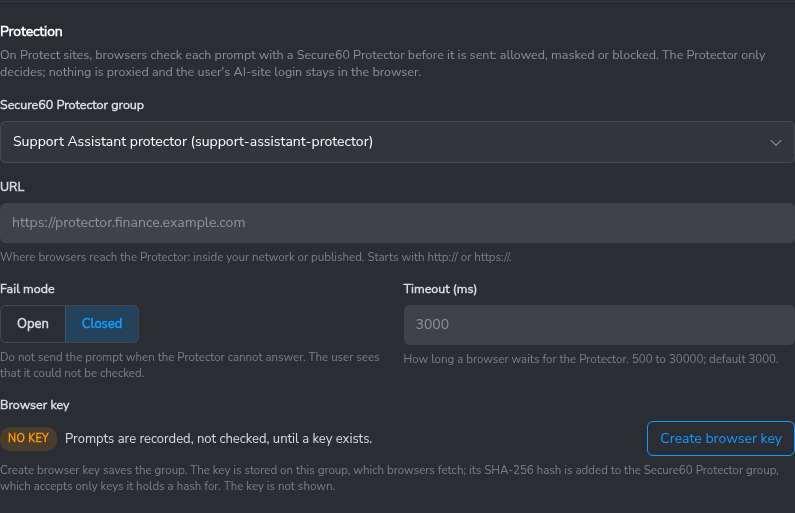
A browser group’s Protection section: which Protector browsers ask, how long they wait, and what happens when it cannot answer.
Set it up
- Run a Secure60 AI Protector, version 1.13 or later, at an address the browsers can reach: inside your network or published.
- On the Protector group, under Secure60 Browser checks, choose the guardrail policy that browser checks use.
- On the browser group, under Protection, choose the Secure60 Protector group, enter the URL, choose the Fail mode and Timeout (ms), and choose Create browser key. The key is stored on the browser group, which browsers fetch on their next sync; its SHA-256 hash is added to the Protector group, which accepts only keys it holds a hash for.
- Set the sites to Protect: on a site list entry, or with Protect all when the group attaches a list.
When the Protector cannot answer
The Fail mode decides what happens when the Protector does not answer within the timeout (3,000 ms by default), rejects the browser key or fails:
- Open sends the prompt and records it as not checked (
inspection_status=timeout,unavailable,rejectedorerror). - Closed does not send the prompt, shows a notice that it could not be checked, and records it as blocked.
Which sites can be checked
A prompt can be held only on a site whose prompts are read from the site’s own chat API: ChatGPT and Claude today. On a Protect site where that is not possible, for example Gemini, and on any Protect site in a group with no Protector, prompts are recorded as Record full and not checked. The group’s Effective sites table in the portal shows which Protect sites are checked and why any are not.
What a check costs
The user waits for the check before the prompt is sent. Measured on a Protector with two workers, from the browser’s send to the prompt leaving, with the PII filter (email, card, phone and IBAN), secret patterns and the phrase-list prompt-injection check:
| Prompt | Extra wait before send, median / 95th percentile |
|---|---|
| 50 characters | 37 ms / 47 ms |
| 1,000 characters | 63 ms / 82 ms |
| 1,000 characters, masked | 76 ms / 131 ms |
| 10,000 characters | 309 ms / 381 ms |
The PII filter is most of the cost; secret patterns and the phrase list alone take under 10 ms even at 10,000 characters. The prompt-injection classifier (engine: classifier or both) adds the most: about 175 ms for a 1,000-character prompt and about one second for 10,000 characters on the same Protector. Size the Protector for the number of prompts sent at once, or raise the timeout, before turning the classifier on for browsers.
What is recorded
The browser records the exchange as for Record full and adds the Protector’s verdict in the Protector’s own field names: event_guardrail_decision (allowed, modified or blocked), event_guardrail_mode, violation_types, data_risk_score, inspection_status, guardrail_latency_ms and send_delay_ms. A masked prompt also keeps modified_prompt, the text that was sent. Each finding is one app-guardrail-violation event. A blocked prompt is an exchange with outcome = blocked and no response.
The Protector also keeps its own record, so a check is evidenced even when a browser is offline or has been tampered with. On the Protector group, Record checks chooses which: Findings only (the default: every check where the policy found something), Every check, or Off. Each is one app-guardrail-browser-check event with the Protector’s decision, findings, latency and the prompt as the policy’s capture mode allows. It carries the browser’s event_guardrail_request_id, so the session view shows Checked by Secure60 Protector on the exchange it belongs to. Protector records are evidence, not calls: they are not counted in AI Activity totals, and the findings rows come from the browser only.
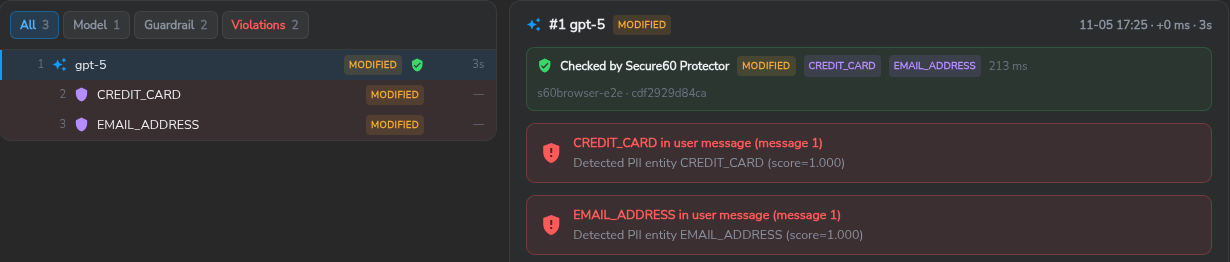
A masked prompt in the session view: the browser’s findings, and the Protector’s own record of the same check.
Common setups
The Secure60 lists are AI chat assistants, AI coding tools, AI writing & productivity, AI developer consoles & APIs and AI image, audio & video (each defaults to Record full), and Emerging AI (defaults to Visit only). Site lists below names the sites on each.
Record and discover
Create a group and attach all six Secure60 lists as listed. ChatGPT, Claude and Gemini are recorded with their prompts and responses, the other sites on the five Record full lists are recorded as visits where their prompts cannot be read, and the Emerging AI sites are recorded as visits, so the AI tools people use are found without writing a rule. Attach a list with Visit only if you want discovery without prompt text anywhere.
Approve one AI tool and block the rest
- Create a custom site list named for the decision, for example Approved AI, with one entry: Claude → Record full. Use Override in a custom list on Claude in the Secure60 AI chat assistants list to start it.
- Attach Approved AI to the group first.
- Attach the six Secure60 lists below it with the action Block all, and write the Notice text that users should see, for example “Use Claude with your work account.”
Claude is recorded in full because the first list that names it, Approved AI, decides. Every other site on the Secure60 lists shows the block page and is logged. To warn first and block later, attach the Secure60 lists with Warn all, which shows the notice and lets users continue while every attempt is recorded.
Check prompts before they reach the AI site
Attach the Secure60 AI chat assistants list with Protect all, and connect the group to a Secure60 AI Protector under Protection. Each prompt on ChatGPT and Claude is checked before it is sent: personal data is masked and secrets and prompt-injection attempts are stopped, by the same policy your Protector applies to your own AI applications. Start the Protector policy in monitor mode to see what would be masked or stopped before you enforce it.
Privacy-first metadata only
Attach the Secure60 lists with the action Metadata only. The record keeps who used which AI site, when, how large each prompt was, a hash that recognises repeated prompts, and how many files were attached. No prompt text, response text or file names leave the browser. Put a custom list that sets a named site to Record full above them if one tool needs a full audit trail.
Different policy per department
Create one browser group per department, for example finance and engineering, and give each its own list stack. Finance might attach Approved AI above the Secure60 lists with Block all; Engineering might attach all of them as listed and put a custom list above them that sets a coding tool you have already audited to Ignore. A site list can be attached to several groups, so a shared Blocked list is maintained once. Each browser names its group in its policy or connection code, which a Google Admin organisational unit or an MDM device group can set per department.
How it captures
Two independent paths feed each exchange, and either one alone is enough.
- The site’s own chat API (sites whose definition names an API parser, such as ChatGPT and Claude). A page script wraps the browser’s
fetchand reads the request body and a copy of the streamed response. - The page. A content script reads the composer when the user presses Enter or Send, the new user turn, and the assistant turn once it stops streaming, using the site’s selectors. A 500 ms watcher also catches sends that bypass both, such as suggestion chips and voice input.
A background service worker resolves the configuration, registers the capture scripts for every site whose prompts are read and injects them into tabs that are already open, so a site added in the portal is recorded without a release or a page reload. It sends warn and block pages by redirecting the site’s page loads to a Secure60 notice page, and queues events and posts them as a JSON array to {endpoint}/ingest/1.0/http/project/{project_id} with Authorization: Bearer <ingest token>.
Configuration model
Browser groups
A browser group is the policy a set of browsers runs, for example one per department. A browser names its group in its connection settings (policy key group, or the connection code), and a browser with no group runs default. Each Chrome profile has its own extension instance, storage and policy scope, so each can be in a different group. With the Google Admin console, set group per organisational unit; with a macOS configuration profile, per user or device group.
A group sets the notice text for warn and block pages, the character limit, the corporate email domains, the sync interval, whether recording is on, and the site lists it attaches, in order. Each attachment is either as listed, where every site keeps the action on its list entry, or one action for the whole list, for example “AI chat assistants: Block all”. A group that Secure60 cannot find runs on defaults, and the browser reports group_not_found.
Site lists
A site list is a named list of “site → action”. It is the only way a site is named.
Secure60 lists are published by Secure60 and inherited by every organisation. They are read-only, and Secure60 keeps them up to date: new sites, and fixes to how a site’s prompts are read, reach every browser on its next sync. Each site on a list carries its domains, provider and category, and for some sites the page selectors and API paths that let its prompts be read.
| List | Default action | Sites |
|---|---|---|
| AI chat assistants | Record full | ChatGPT, Claude, Gemini, Microsoft Copilot, Microsoft 365 Copilot, Le Chat, Perplexity, Grok, Meta AI, Character.AI, Poe, You.com, Pi, Duck.ai, NotebookLM |
| AI coding tools | Record full | GitHub Copilot, Cursor, Windsurf, v0, Lovable, Bolt, Phind, Blackbox AI |
| AI writing & productivity | Record full | Jasper, Writesonic, Copy.ai, Grammarly, QuillBot, DeepL, Gamma, Tome, Otter.ai, Fireflies.ai, Manus |
| AI developer consoles & APIs | Record full | Google AI Studio, OpenAI Platform, Anthropic Console, Claude Platform, Hugging Face, GroqCloud, OpenRouter, Together AI, Replicate |
| AI image, audio & video | Record full | Sora, Midjourney, Leonardo.Ai, Runway, ElevenLabs |
| Emerging AI | Visit only | DeepSeek, Qwen, Kimi, Doubao |
Custom lists belong to your organisation. An entry takes one of two forms:
- Refers to a Secure60 site by its key, for example Claude → Record full. Nothing is copied: the definition stays managed, so when Secure60 updates the site, your action still applies. This changes only the action.
- Defines a new site, for example an internal AI assistant: its domains and action, and optionally the page selectors that let its prompts be read.
To change what happens on one Secure60 site, put it on a custom list that the group attaches above the Secure60 list (Override in a custom list in the portal). Removing the entry brings the Secure60 list’s action back. To change a whole Secure60 list, change how the group attaches it. An entry that defines domains for a key Secure60 also has replaces Secure60’s definition for the groups that use that list, which corrects or narrows a managed site without waiting for an update.
Selectors and API paths are data. A change to how a site works is fixed by editing a list, not by shipping a new extension.
Precedence
For each setting, the first of these that is set wins:
- Browser policy (managed storage). Shown as “Set by your organisation” and locked on the settings page.
- The browser group, from the portal.
- The settings page, saved in the browser.
- Package defaults: a preconfiguration file bundled at build time, then the built-in default.
The connection (ingest URL, project id, ingest token and group key) is the exception: it comes only from browser policy, the settings page or the bundled file, never from the group.
Manage it in the portal
Open Integrations → Secure60 Browser.
| Tab | What it does |
|---|---|
| Site lists | The six Secure60 lists, read-only, each with Override in a custom list on its sites, and your custom lists. Each custom entry is a site and an action, with domains and selectors for a site you define |
| Browser groups | Create and edit groups: the attached lists with their order and action (as listed, or one action for the whole list), Attach all to add every list at once, notice text, character limit, corporate domains, sync interval and Protection. A group shows its effective sites, each with the list that decided its action. Expand a group to see its browsers, with extension version, last sync and configuration status, and each browser’s AI activity and All events |
| Setup | Creates the ingest token, generates the connection code (including the group) and the browser policy JSON, and downloads the extension package |
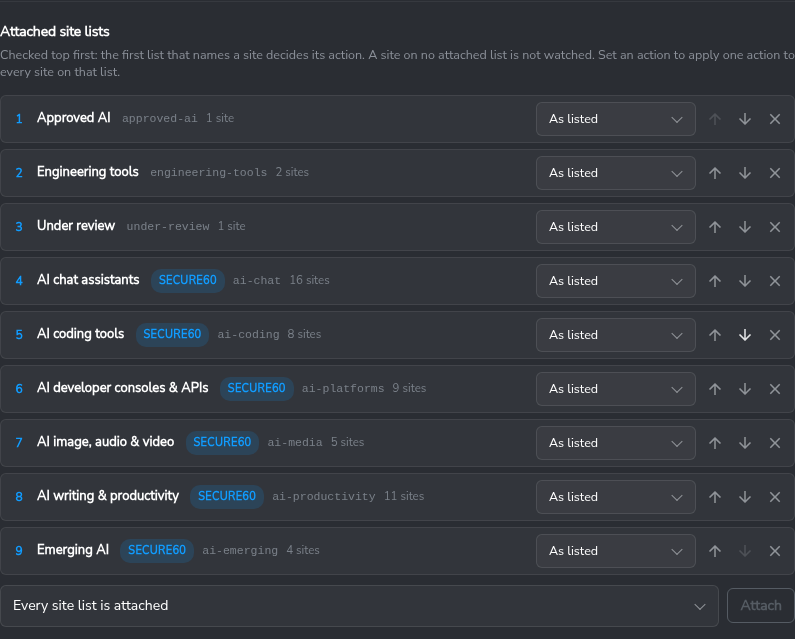
Attached site lists, checked top first. Attach all puts your custom lists above the Secure60 lists, so their sites win.
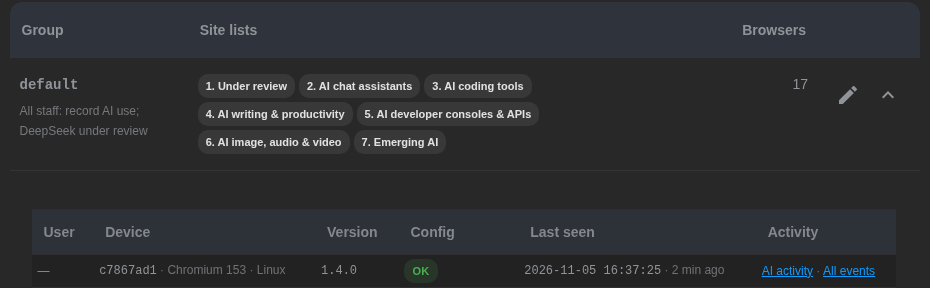
A group expanded to its browsers. AI activity opens that browser’s prompts, blocks and warnings; All events opens every event it sent in Search.
Sync
The browser reads its group and the site lists, its own and Secure60’s, with its ingest token every 15 minutes by default (sync_minutes), on browser start, after settings are saved and when Sync now is chosen on the settings page. If Secure60 cannot be reached, the last good configuration stays in force, the built-in copy of the Secure60 lists, all attached as listed, is used before the first successful sync, and the next heartbeat reports the failure.
A group’s browsers read their configuration status from the heartbeat:
config_status |
Meaning |
|---|---|
ok |
The group and its site lists were synced |
local |
Running on local or bundled settings, with no portal group in use |
sync_failed |
The last sync failed; the last good configuration is in force |
group_not_found |
The named group does not exist in the project’s organisation |
not_configured |
No project id or ingest token is set |
Quick Start on a Managed Fleet
The extension id is fixed: jiecnoeapgcpbcdholamhcffinkmhloa. Force-install and configuration are both Chrome policy, pushed by your MDM or the Google Admin console.
Step 1: Generate the connection details
In the portal, open Integrations → Secure60 Browser → Setup. It creates an ingest token for the receiving project, and shows the connection code, the policy JSON below and the package download. The extension sends to https://ingest.secure60.io unless endpoint is set; set it only for an on-premises Secure60.
Step 2: Force-install the extension
Chrome policy ExtensionSettings. Until a Chrome Web Store listing exists, host the packaged extension and its update.xml on a web server you control and point update_url at it. Chrome installs an extension from outside the Chrome Web Store only on a managed device (joined to a domain, enrolled in an MDM, or enrolled in Chrome Enterprise Core):
{
  "jiecnoeapgcpbcdholamhcffinkmhloa": {
    "installation_mode": "force_installed",
    "update_url": "https://<your host>/s60-browser/update.xml",
    "toolbar_pin": "force_pinned"
  }
}
Step 3: Set the extension’s settings
Push the settings as managed storage for the extension. On macOS this is a configuration profile payload of type com.google.Chrome.extensions.jiecnoeapgcpbcdholamhcffinkmhloa; in the Google Admin console it is the app’s Policy for extensions.
{
  "project_id": { "Value": "301" },
  "ingest_token": { "Value": "<ingest token>" },
  "group": { "Value": "finance" },
  "user_name": { "Value": "$EMAIL" }
}
The Google Admin console takes the plain object without the Value wrappers. $EMAIL stands for the MDM variable that holds the employee’s email address; use the variable your MDM provides. Set group per organisational unit or device group so each department runs its own browser group. Everything else comes from the group.
Step 4: Lock the extension in place
Block Developer mode and the extension’s removal with the ExtensionSettings and BlockExternalExtensions policies, so users cannot turn it off.
Step 5: Verify
On a managed browser, open chatgpt.com, send a prompt, and open the extension’s settings page: Configuration from Secure60 shows the group, its attached site lists and which sites are recorded, warned and blocked, and the page lists the last 10 exchanges. In the portal, the browser appears under its group on the Browser groups tab, and the exchange appears under AI → AI Activity → AI Audit Trail with the source Secure60 Browser.
Quick Start for a Pilot
A pilot installs the unpacked extension on one browser. It needs no policy.
- Unzip
s60-browser-<version>.zipto a folder you keep. Chrome loads the extension from that folder, so do not delete it. - Open
chrome://extensionsin Chrome and turn on Developer mode. - Choose Load unpacked and pick the folder.
- In the portal, open Integrations → Secure60 Browser → Setup, choose the browser group and choose Generate connection code.
- Open the extension’s settings (toolbar icon → Settings) and paste the code. The extension connects, reads its group and sends a test event; no Save is needed.
- Pin the extension. Its badge shows ON on sites that are recorded.
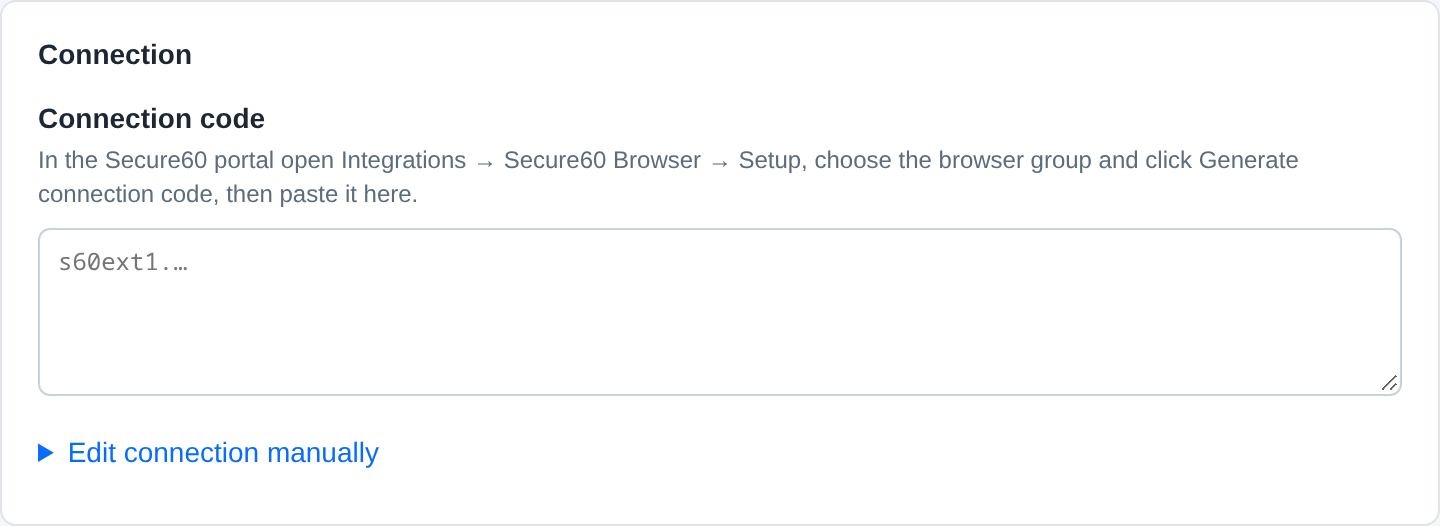
Before: one box for the connection code.
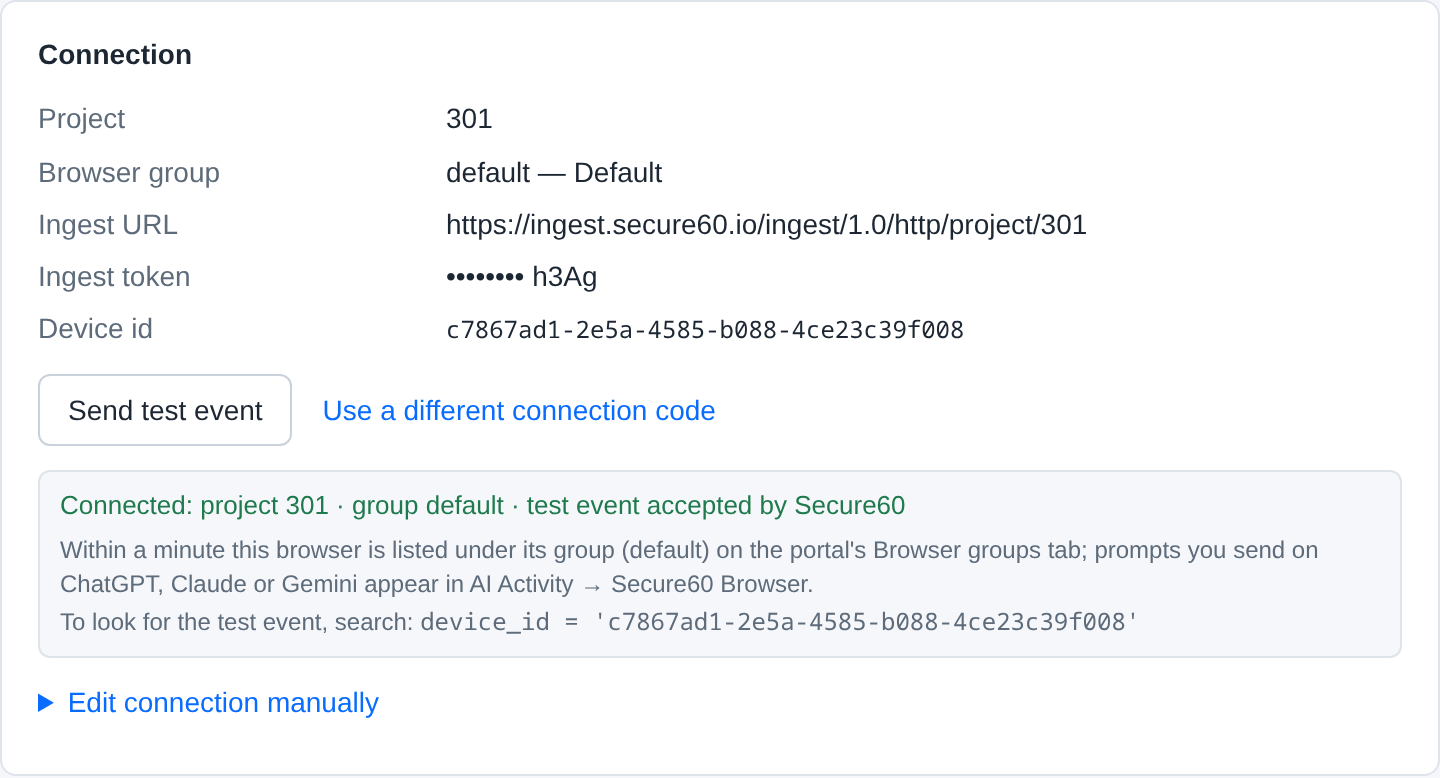
After: the connection, and what to look for next.
A connection code bundles the ingest URL, project id, ingest token and group into one string. A JSON object with the same values, for example {"endpoint": "https://ingest.secure60.io", "project_id": "301", "ingest_token": "…", "group": "finance"}, is accepted in the same box, and Edit connection manually shows the individual fields. A package built with the connection already included needs no steps 4 and 5.
“Test event accepted” means Secure60 ingest received the event. Within a minute the browser appears under its group on the Browser groups tab; its All events link shows the test event.
Updating the Extension
The extension id is the same in every version, so an update keeps the browser’s connection, settings and queued events.
A pilot browser (loaded unpacked). Unzip the new s60-browser-<version>.zip over the folder the extension was loaded from, replacing its files. Open chrome://extensions and choose the reload arrow on Secure60 Browser. Do not choose Remove: removing the extension deletes its settings. The settings page header and the Version column on the Browser groups tab show the version in use.
A managed fleet. Chrome checks the extension’s update URL every few hours and installs a newer version without user action. Publish the new version where your update_url points; browsers report the new version in their next heartbeat.
Settings
| Key | Default | Set by | Meaning |
|---|---|---|---|
enabled |
true |
policy, group, settings | Turn recording on or off for this browser |
endpoint |
https://ingest.secure60.io |
policy, settings | Ingest origin. Set only for an on-premises Secure60 |
admin_base |
the ingest URL’s origin | policy, settings | Where the group and site lists are read. Default: the ingest URL’s origin |
project_id |
none | policy, settings | The project that receives the events, for example 301 |
ingest_token |
none | policy, settings | An ingest token for the project, created in the portal under Integrations → Secure60 Browser → Setup |
group |
default |
policy, settings | The browser group this browser belongs to, for example finance. Groups are managed in the portal |
sites |
none | policy | Overrides the group: site key to an action, for example {"deepseek": "block"} |
notice |
none | policy, group | Overrides the group: shown on warn and block pages |
max_content_chars |
20000 |
policy, group, settings | Overrides the group: characters kept per prompt and per response. Longer text is cut and flagged |
corporate_domains |
none | policy, group, settings | Overrides the group: comma-separated email domains. An AI account on one of these is corporate, any other is personal |
sync_minutes |
15 |
policy, group, settings | Overrides the group: minutes between configuration syncs, from 5 to 1440 |
user_name |
none | policy, settings | Overrides the user identity, for example the employee’s email from an MDM variable |
device_name |
none | policy, settings | Recorded as host_name, for example the computer name from an MDM variable |
protector_url |
none | policy, group | Overrides the group: the Secure60 AI Protector that checks prompts on Protect sites, for example https://protector.example.com |
protector_key |
none | policy, group | Overrides the group: the browser key the Protector accepts. Created in the portal with Create browser key |
protector_fail |
open |
policy, group | Overrides the group: open sends a prompt the Protector could not check, closed stops it |
protector_timeout_ms |
3000 |
policy, group | Overrides the group: how long a prompt waits for the Protector, from 500 to 30000 |
Recording starts once project_id (a number) and ingest_token are set.
Identity
The user on each event is the first match in this order:
| Order | Source | user_source |
|---|---|---|
| 1 | user_name set by browser policy |
policy |
| 2 | user_name set on the settings page |
settings |
| 3 | The Chrome profile’s signed-in account | browser_profile |
| 4 | The AI site’s signed-in account | site_account |
user_source is none when no step names a user. The AI-site account is always recorded separately in ai_account_email, with ai_account_type set to corporate, personal, signed_in (no corporate domains are configured), anonymous (signed out) or unknown.
Attribution is for reporting, not a security boundary, the same rule as the Protector.
What appears in AI Activity
Secure60 Browser events appear in AI Activity with the source Secure60 Browser:
- Session list — each conversation is a session on the AI Audit Trail tab, with its application, user and model.
- Session view — the prompt and the response of each exchange, with the attached file names and the AI-site account.
- Calls view — warned and blocked attempts appear beside the recorded calls, split by
operation. - Blocked tile — browser blocks are counted in the Blocked tile with the blocks from other sources.
- Source filter — filter the trail to Secure60 Browser to see only browser use.
- One browser — a browser’s AI activity link on the Browser groups tab opens the trail filtered to that browser, shown as One browser above the list; close it to see every source again.
- Violations view — on Protect sites, each finding the Protector reported is a row, with the Protector’s own findings.
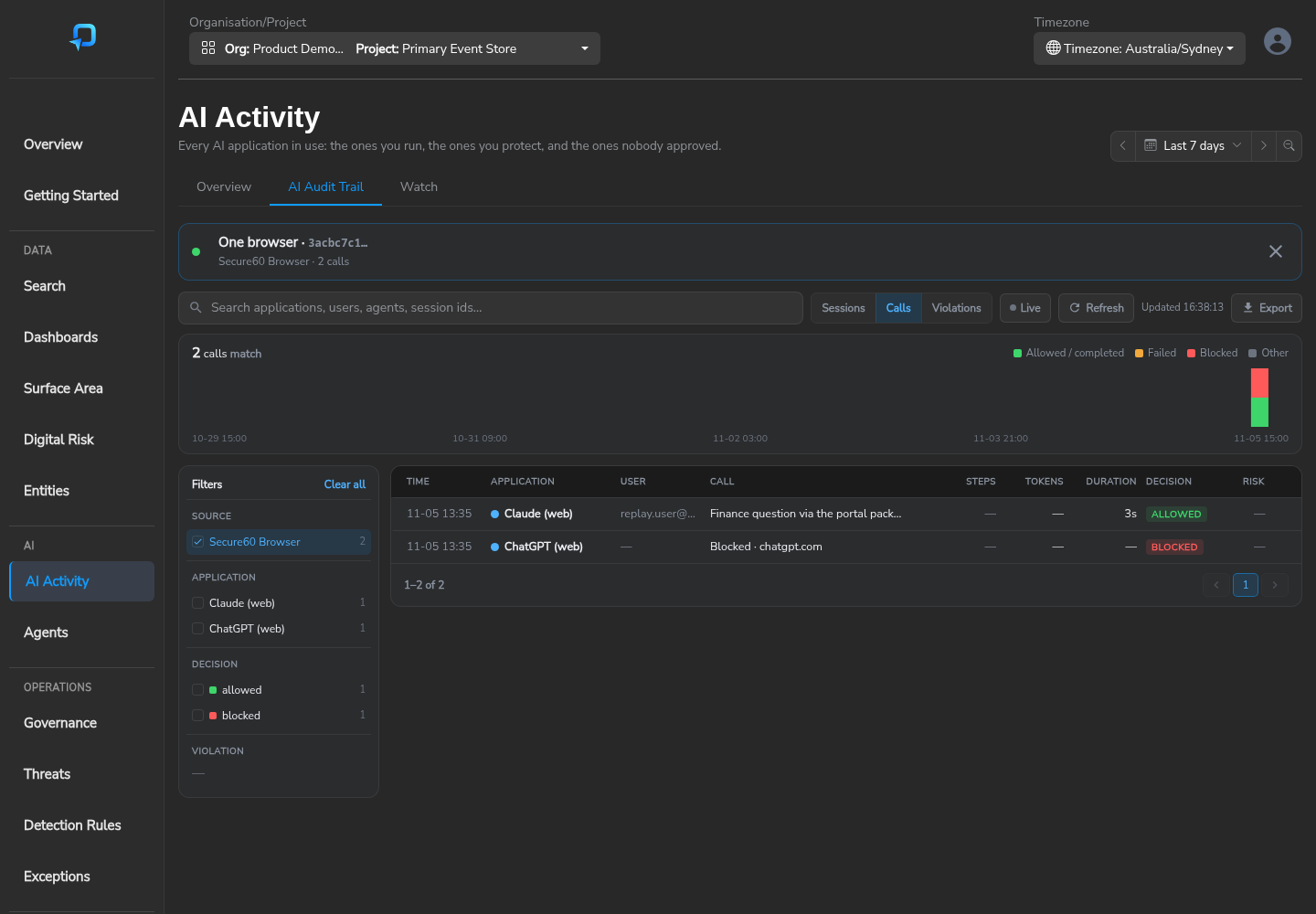
The AI Audit Trail filtered to one browser from its AI activity link.
Visit records name the AI application in use, so a site visited in the browser is counted against the same application that network detection reports. The same events are available in Search and to detection rules.
Event Reference
Secure60 Browser sends seven operations. Every site event also carries site_list, the key of the site list that decided the action (for example ai-chat, or the key of one of your own lists); it is absent when browser policy decided. Every event carries vendor = "Secure60", product = "s60-browser" and source_type = "s60-browser", and source_name and browser_group carry the group key. Events about AI use have type = "ai"; site visits and heartbeats have type = "browser", and warn and block events have type = "ai" for an AI site and browser for any other site. Field definitions are in the Common Information Model.
operation |
Sent | Key fields |
|---|---|---|
ai-browser-exchange |
One per prompt and response | app_name, ai_app_name, ai_provider, ai_surface, site_key, site_action, site_list, user_name, user_source, ai_account_email, ai_account_type, model_used, message_text, response_text, attachment_names, ai_session_id, event_guardrail_session_id, capture_mode, capture_method, response_complete, outcome. On a Protect site also event_guardrail_decision, event_guardrail_mode, violation_types, data_risk_score, inspection_status, guardrail_latency_ms, send_delay_ms, modified_prompt |
app-guardrail-violation |
One per finding the Protector reported on a Protect site | violation_type, violation_message, violation_start, violation_end, event_guardrail_decision, event_guardrail_session_id, event_guardrail_request_id, app_name, user_name |
ai-browser-visit |
One per AI site per user per 30 minutes | app_name, ai_app_name, ai_provider, ai_category, ai_surface, ai_capture, ai_detection, site_key, site_action, site_list, user_name, http_domain |
browser-site-visit |
One per non-AI site per user per 30 minutes | app_name, site_key, site_category, site_action, site_list, user_name, http_domain, http_uri |
browser-site-blocked |
Each time the block page replaces a site | app_name, site_key, site_action, site_list, site_decided_by, ai_app_name, ai_provider, user_name, http_domain, outcome |
browser-site-warned |
When the warning is shown, and again when the user continues | app_name, site_key, site_action, site_list, site_decided_by, warn_outcome, ai_app_name, ai_provider, user_name, http_domain, outcome |
browser-heartbeat |
On install, update, browser start, every 6 hours and every configuration change | browser_group, site_lists, recording, config_status, config_hash, catalogue_version, sites_full, sites_visit_count, sites_warn, sites_block_count, last_sync_at, sync_error, queue_size, dropped_events, reason |
outcome is success when the response finished and incomplete when it did not, and blocked on an exchange whose prompt a Protect check stopped. It is blocked on browser-site-blocked, and on browser-site-warned it is warned when the notice was shown and success when the user continued. On a heartbeat it is failure while the group sync is failing. site_list is the key of the list that decided, and site_decided_by names it, or policy when browser policy did. site_lists on the heartbeat is the group’s attached lists, top first, as a key or key:action when attached with one action for the whole list, for example approved-ai, ai-chat:block. capture_method records which capture path produced the exchange. Visit records hold no content, and a site on Metadata only keeps no text. The heartbeat shows which browsers are reporting, under which group and with what configuration, and a group’s browsers in the portal are read from it.
Limits
- Browser only. Desktop apps, mobile apps, other browsers and other Chrome profiles without the extension are not seen. Network detection and the Secure60 AI Protector cover those.
- Per site, on page load. Warn and block act on a site as a whole when its page loads. They do not look at what is typed; Protect does.
- Protect needs a readable chat API. Prompts are held and checked on ChatGPT and Claude. On other Protect sites they are recorded and not checked, and attached files are named to the Protector but not scanned.
- Site changes. The AI sites change their markup and APIs. Selectors and API paths are data in the site lists, so a fix is an edit there, not a release; the parsers for each API’s stream format are part of the extension. Each site has ordered fallbacks and either capture path is enough on its own. The settings page lists the last 10 exchanges so each site can be checked.
- Attribution. User and device values are for reporting, not a security boundary.
 Back to top